> ## Documentation Index
> Fetch the complete documentation index at: https://docs.mx.com/llms.txt
> Use this file to discover all available pages before exploring further.
# Dashboard
The Dashboard is the main page of the mobile app, displaying all accounts organized by type, an access point to the Connect Widget, Financial Insights (if purchased), and mini financial management widgets. Your users can customize which accounts appear and access key features like notifications, search, and account management.
## Header
The Dashboard header displays your institution's name, search bar, notification bell, and three-dot menu. It also shows a dynamic greeting that changes based on the user's local time:
* Good Morning
* Good Afternoon
* Good Evening
### Notification Bell
The bell icon shows the number of unread notifications. Your users can select it to view the full [notifications page](/products/experience/mobile/features/notifications).
### Three-Dot Menu
The three-dot menu opens a More Options modal with Customize Dashboard options and a Send Feedback form.
## Accounts Views
Under the heading, you see a pill-style tab bar with six tabs:
* Summary
* Checking
* Savings
* Credit
* Loans
* Investments
**NOTE**
You can scroll tabs horizontally.
Each pill tab includes multiple associated account types.
| Pill tab | Account types |
| :---------- | :--------------------------------------------------------- |
| Checking | `CHECKING` |
| Savings | `SAVINGS` |
| Credit | `CREDIT_CARD`, `LINE_OF_CREDIT`, `CHECKING_LINE_OF_CREDIT` |
| Loans | `LOAN`, `MORTGAGE` |
| Investments | `INVESTMENT`, `PROPERTY` |
| Other | `CASH`, `INSURANCE`, `PREPAID`, `DIGITAL_WALLET` |
### Summary
The **Summary** tab displays all aggregated accounts as row items, showing the account name, type, and balance.
Your users can select the left side of a row to open account details, or select the right side to open a card view. The app displays Financial Insights for an account when your users expand the card.
The expanded card view shows general account information (such as balance) and the 3 most recent transactions. The card footer includes available action buttons based on account eligibility, which you configure via the [MDX API](/api-reference/more-apis/mdx/).
Different account types will display different balances. See the table to identify which balance field will display by default. The display term can be changed per account type.
| Account Type | Balance Display |
| :---------------------- | :-------------- |
| Checking, Savings | `Available` |
| Credit, Loans, Mortgage | `Outstanding` |
| Investments, Any, Other | `Balance` |
Action types in order of preference:
1. `Deposit`
2. `Transfer`
3. `Make Payment`
**WARNING**
Only two actions can display at a time.
### Pill Tabs
When your users select a tab, the app displays all accounts belonging to that group in an at-a-glance view. Under the group, **Manage** and **Connect** buttons appear, allowing your users to remove existing accounts or add new accounts.
## Transactions
Under the accounts view, the app displays a card view of all transactions. The app embeds insights generated for specific transactions into their respective transaction rows. Your users can select **View More** to open the full [Transactions widget](/products/experience/mobile/features/transactions).
 ## Connect Accounts
The Connect Accounts card provides another entry point where your users can add more accounts to their profile. For more information, visit the [Connect Widget](/connect/) page.
## Connect Accounts
The Connect Accounts card provides another entry point where your users can add more accounts to their profile. For more information, visit the [Connect Widget](/connect/) page.
 ## Insights
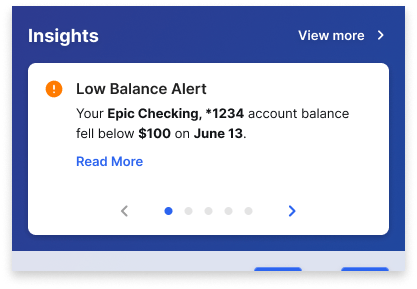
The Insights card will show the [Micro Insights Widget](/products/experience/insights/widget-overviews/micro-widget). This displays users' insights. When users select an insight, the app redirects them to the Insights Widget with that insight pinned to the top.
## Insights
The Insights card will show the [Micro Insights Widget](/products/experience/insights/widget-overviews/micro-widget). This displays users' insights. When users select an insight, the app redirects them to the Insights Widget with that insight pinned to the top.
 **NOTE**
The Insights card only displays if you've purchased Financial Insights.
## Mini Widgets
The next element presented is a selection of mini widgets. For more information on each of the widgets, see [widget overviews](/products/experience/pfm/widget-overviews/).
**NOTE**
All PFM widgets are available except the Money Dashboard widget, Accounts widget, and Transaction widget.
See [Widget customization](/products/experience/mobile/setup#widgets) for how to disable widgets.
**NOTE**
The Insights card only displays if you've purchased Financial Insights.
## Mini Widgets
The next element presented is a selection of mini widgets. For more information on each of the widgets, see [widget overviews](/products/experience/pfm/widget-overviews/).
**NOTE**
All PFM widgets are available except the Money Dashboard widget, Accounts widget, and Transaction widget.
See [Widget customization](/products/experience/mobile/setup#widgets) for how to disable widgets.