> ## Documentation Index
> Fetch the complete documentation index at: https://docs.mx.com/llms.txt
> Use this file to discover all available pages before exploring further.
# Connections Widget Overview
The Connections Widget lets end users manage their connected institutions and accounts.
This widget can be accessed when the user selects **Manage Connections** from the Money Dashboard.
**WARNING**
This widget is **not the same** as the Connect Widget. While the Connect Widget lets users connect their accounts, the Connections Widget helps users manage those connections and connect to their accounts.
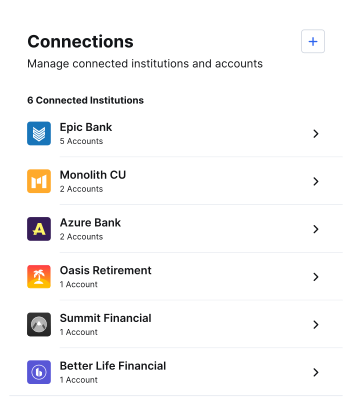 A smaller view of the widget is available (mini widget). This view displays key information and drives traffic to the full widget for more details. The following image shows the Connections Widget as it appears on the Money Dashboard Widget.
 ## Key Features
* View connected institutions and accounts within those institutions
* Connect accounts and resolve connection issues
* Disconnect an institution
* Hide an account from use in other widgets
* Merge accounts that show up twice
* Mark an account as closed
## Filter Connections
If you're using the `use_cases` parameter, you can set the widget to only show connections (members) with the `use_cases` you set when requesting the widget URL.
To do this, set the:
* `connections_use_case_filter` parameter to `true`.
* `use_cases` parameter to `PFM` and/or `MONEY_MOVEMENT`, depending on what connections you want to show in the widget.
**INFO**
For more info on the `use_cases` parameter, see one of the following guides depending on the API you're using:
* [Member Use Cases for Platform API](/api-reference/platform-api/overview/formats-requirements#member-use-cases)
* [Member Use Cases for Nexus API](/api-reference/nexus/reference/01-members-overview)
### Example 1
In this example using the Platform API, the Connections Widget will only show connections (members) that have `PFM` set as a use case.
A connection (`member`) could have its `use_cases` parameter set to `["PFM", "MONEY_MOVEMENT"]` and still display in the widget, since the `member` contains one of the use cases defined in the request.
```json theme={null}
{
"widget_url": {
"widget_type": "connections_widget",
"ui_message_version": 4,
"use_cases": ["PFM"],
"connections_use_case_filter": true
}
}
```
### Example 2
In this example using the Platform API, the Connections Widget will only show connections (members) that have `PFM` or `MONEY_MOVEMENT` set as a use case.
A connection (`member`) could have its `use_cases` parameter set to only `["MONEY_MOVEMENT"]` and still display in the widget, since the `member` contains one of the use cases defined in the request.
```json theme={null}
{
"widget_url": {
"widget_type": "connections_widget",
"ui_message_version": 4,
"use_cases": ["PFM", "MONEY_MOVEMENT"],
"connections_use_case_filter": true
}
}
```
## Key Features
* View connected institutions and accounts within those institutions
* Connect accounts and resolve connection issues
* Disconnect an institution
* Hide an account from use in other widgets
* Merge accounts that show up twice
* Mark an account as closed
## Filter Connections
If you're using the `use_cases` parameter, you can set the widget to only show connections (members) with the `use_cases` you set when requesting the widget URL.
To do this, set the:
* `connections_use_case_filter` parameter to `true`.
* `use_cases` parameter to `PFM` and/or `MONEY_MOVEMENT`, depending on what connections you want to show in the widget.
**INFO**
For more info on the `use_cases` parameter, see one of the following guides depending on the API you're using:
* [Member Use Cases for Platform API](/api-reference/platform-api/overview/formats-requirements#member-use-cases)
* [Member Use Cases for Nexus API](/api-reference/nexus/reference/01-members-overview)
### Example 1
In this example using the Platform API, the Connections Widget will only show connections (members) that have `PFM` set as a use case.
A connection (`member`) could have its `use_cases` parameter set to `["PFM", "MONEY_MOVEMENT"]` and still display in the widget, since the `member` contains one of the use cases defined in the request.
```json theme={null}
{
"widget_url": {
"widget_type": "connections_widget",
"ui_message_version": 4,
"use_cases": ["PFM"],
"connections_use_case_filter": true
}
}
```
### Example 2
In this example using the Platform API, the Connections Widget will only show connections (members) that have `PFM` or `MONEY_MOVEMENT` set as a use case.
A connection (`member`) could have its `use_cases` parameter set to only `["MONEY_MOVEMENT"]` and still display in the widget, since the `member` contains one of the use cases defined in the request.
```json theme={null}
{
"widget_url": {
"widget_type": "connections_widget",
"ui_message_version": 4,
"use_cases": ["PFM", "MONEY_MOVEMENT"],
"connections_use_case_filter": true
}
}
```