> ## Documentation Index
> Fetch the complete documentation index at: https://docs.mx.com/llms.txt
> Use this file to discover all available pages before exploring further.
# Goals Widget Overview
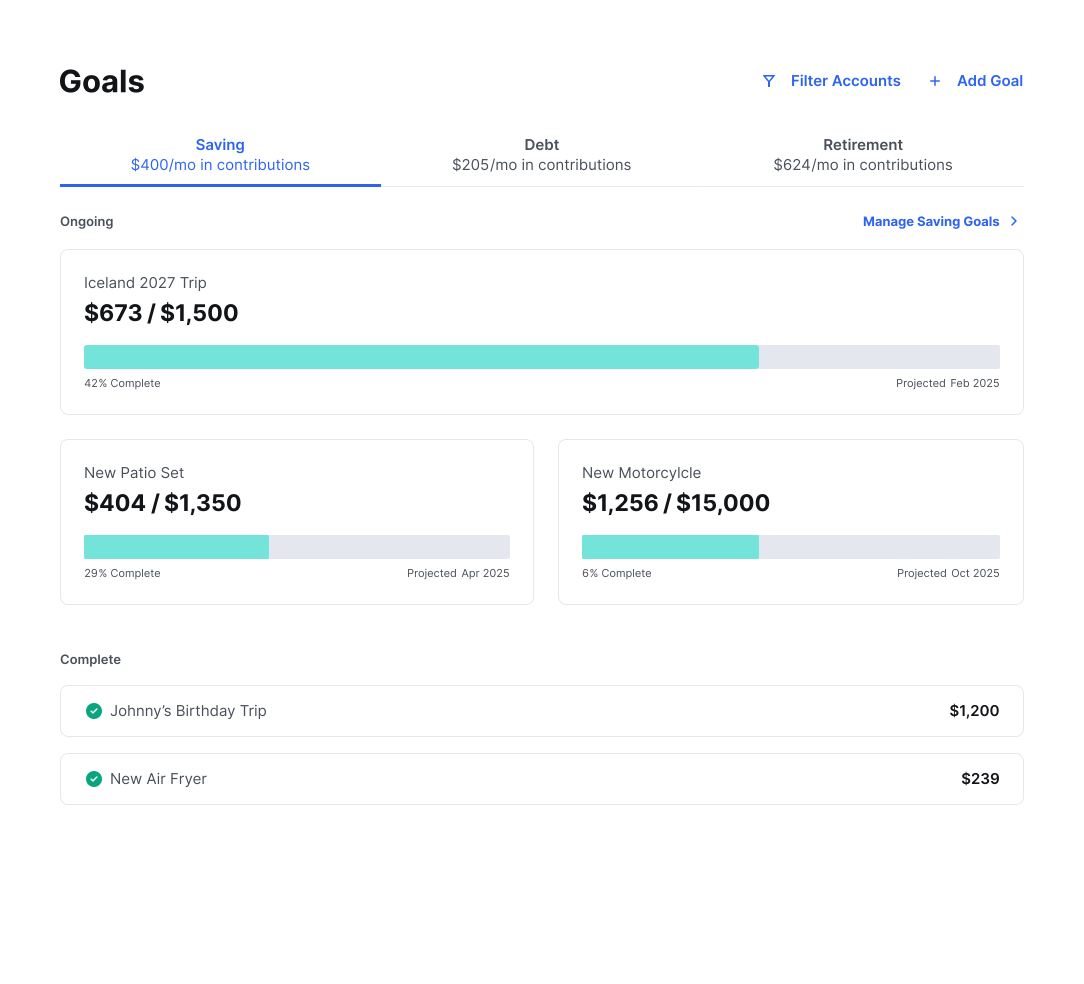
The Goals Widget helps end users plan and visualize their financial goals.
 A smaller view of the widget is available (mini widget). This view displays key information and drives traffic to the full widget for more details.
 This is how the widget appears when no data is available.
 Goals need to be associated with a specific account. More than one savings goal can be set on the same account, but they need to be ranked in order of priority. Ranking can be manually adjusted. If a user has multiple goals on one account, the highest-priority goal will get all the funds. Goals automatically update as users put money into a savings account or pay off a debt.
Debt-type accounts (credit card, loan, line of credit, mortgage) will auto generate a debt goal. This is the only auto-generated goal type. Savings and retirement goals must be manually created.
Goals appear as tiles in order of projected payoff date (unless manually prioritized) with the earliest to be paid off at the top. Each tile shows:
* The account that's linked to the goal
* % paid off
* Progress bar of completion
* Projected payoff date
* Amount paid vs amount owed
## Key Features
* Add a new goal (savings, debt payoff, retirement)
* See goals, progress, and projected completion date
* Hide a debt payoff goal
* Delete a savings or retirement goal
* Edit the details of a goal
* Filter the accounts shown
## Goal Types
There are 3 types of goals: Savings, Debt, and Retirement. Goals will be grouped along the top by goal type. Each goal type has a color assigned to make them easily identifiable.
* Savings – Green
* Debt Payoff – Blue
* Retirement – Purple
**DEBT GOALS**
If a user has already connected a debt account, the widget will automatically pull in the information it needs to create a debt goal, including balance, APR, and minimum payments. The widget will use the minimum payment information to automatically calculate the date the debt will be repaid, however, users can add more to pay the debt off sooner.
## Create a Debt Payoff Goal
1. In Goals, select **Add a Goal**.
2. Choose the **Debt Payoff** goal type. This will bring up a window that lists all your debt accounts.
3. Check all the accounts you wish to track.
4. Select **Save**.
Each debt account you selected will appear on the main page of Goals.
## Create a Retirement Goal
1. In Goals, select **Add a Goal**.
2. Choose the **Retirement** goal type.
3. Select your date of birth. If you've already entered personal information in Settings, your birthday will automatically be imported.
4. Choose the age at which you'd like to retire. The default is 65.
5. Enter the amount of money you'd like to have when you retire.
6. Select **Current Savings**. This will open a window from which you can choose your retirement accounts.
7. Check one or more retirement accounts. The total balance of selected accounts will be listed as your current savings.
8. Select **Add it Here** at the top of the panel if you need to connect another account to the software.
9. Select **Save**.
10. Select **Save** on the next window as well.
The retirement goal will appear on the main page of Goals.
If you aren't projected to achieve your desired retirement savings by your selected age — based on a 6 percent average rate of return — a blue "i" symbol will appear.
## Create a Savings Goal
1. In Goals, select **Add a Goal**.
2. Select the **Savings** goal type.
3. Select a more specific type of savings goal. You can choose from: emergency fund, automobile, college, home, recreational, vacation, electronic, or other.
4. Edit the details for the goal: give it a name and set an amount you would like to save for your goal.
5. Select the **Select an Account** field. A window will appear listing all your non-checking, non-debt accounts.
6. Select the account you'd like to use for this goal.
7. Select **Save**.
The goal will appear on the main page of Goals.
## Change Your Debt Goal Priority
1. In Goals, select the dropdown menu on the right side of the panel. The default setting is **Fastest Payoff First**.
2. Choose your preferred priority method.
You can choose from **Fastest Payoff First**, **Highest Interest First**, **Lowest Balance First**, and **Highest Balance First**.
## Change Your Goal Contribution
1. In Goals, under Manage Goals, open the monthly contribution window. Select **Savings**, **Debt Payoff**, or **Retirement**.
2. Select **Edit Contribution**.
3. Enter your new contribution amount.
4. Select **Save**.
You'll see the new goal reflected in the goal summary at the bottom of the window. The projected date will also automatically update.
## Change Your Savings Priority
1. Select **Reorder**.
2. Drag the goals to your preferred order.
Goals need to be associated with a specific account. More than one savings goal can be set on the same account, but they need to be ranked in order of priority. Ranking can be manually adjusted. If a user has multiple goals on one account, the highest-priority goal will get all the funds. Goals automatically update as users put money into a savings account or pay off a debt.
Debt-type accounts (credit card, loan, line of credit, mortgage) will auto generate a debt goal. This is the only auto-generated goal type. Savings and retirement goals must be manually created.
Goals appear as tiles in order of projected payoff date (unless manually prioritized) with the earliest to be paid off at the top. Each tile shows:
* The account that's linked to the goal
* % paid off
* Progress bar of completion
* Projected payoff date
* Amount paid vs amount owed
## Key Features
* Add a new goal (savings, debt payoff, retirement)
* See goals, progress, and projected completion date
* Hide a debt payoff goal
* Delete a savings or retirement goal
* Edit the details of a goal
* Filter the accounts shown
## Goal Types
There are 3 types of goals: Savings, Debt, and Retirement. Goals will be grouped along the top by goal type. Each goal type has a color assigned to make them easily identifiable.
* Savings – Green
* Debt Payoff – Blue
* Retirement – Purple
**DEBT GOALS**
If a user has already connected a debt account, the widget will automatically pull in the information it needs to create a debt goal, including balance, APR, and minimum payments. The widget will use the minimum payment information to automatically calculate the date the debt will be repaid, however, users can add more to pay the debt off sooner.
## Create a Debt Payoff Goal
1. In Goals, select **Add a Goal**.
2. Choose the **Debt Payoff** goal type. This will bring up a window that lists all your debt accounts.
3. Check all the accounts you wish to track.
4. Select **Save**.
Each debt account you selected will appear on the main page of Goals.
## Create a Retirement Goal
1. In Goals, select **Add a Goal**.
2. Choose the **Retirement** goal type.
3. Select your date of birth. If you've already entered personal information in Settings, your birthday will automatically be imported.
4. Choose the age at which you'd like to retire. The default is 65.
5. Enter the amount of money you'd like to have when you retire.
6. Select **Current Savings**. This will open a window from which you can choose your retirement accounts.
7. Check one or more retirement accounts. The total balance of selected accounts will be listed as your current savings.
8. Select **Add it Here** at the top of the panel if you need to connect another account to the software.
9. Select **Save**.
10. Select **Save** on the next window as well.
The retirement goal will appear on the main page of Goals.
If you aren't projected to achieve your desired retirement savings by your selected age — based on a 6 percent average rate of return — a blue "i" symbol will appear.
## Create a Savings Goal
1. In Goals, select **Add a Goal**.
2. Select the **Savings** goal type.
3. Select a more specific type of savings goal. You can choose from: emergency fund, automobile, college, home, recreational, vacation, electronic, or other.
4. Edit the details for the goal: give it a name and set an amount you would like to save for your goal.
5. Select the **Select an Account** field. A window will appear listing all your non-checking, non-debt accounts.
6. Select the account you'd like to use for this goal.
7. Select **Save**.
The goal will appear on the main page of Goals.
## Change Your Debt Goal Priority
1. In Goals, select the dropdown menu on the right side of the panel. The default setting is **Fastest Payoff First**.
2. Choose your preferred priority method.
You can choose from **Fastest Payoff First**, **Highest Interest First**, **Lowest Balance First**, and **Highest Balance First**.
## Change Your Goal Contribution
1. In Goals, under Manage Goals, open the monthly contribution window. Select **Savings**, **Debt Payoff**, or **Retirement**.
2. Select **Edit Contribution**.
3. Enter your new contribution amount.
4. Select **Save**.
You'll see the new goal reflected in the goal summary at the bottom of the window. The projected date will also automatically update.
## Change Your Savings Priority
1. Select **Reorder**.
2. Drag the goals to your preferred order.