> ## Documentation Index
> Fetch the complete documentation index at: https://docs.mx.com/llms.txt
> Use this file to discover all available pages before exploring further.
# OAuth in Mobile Apps
## Workflow Diagram
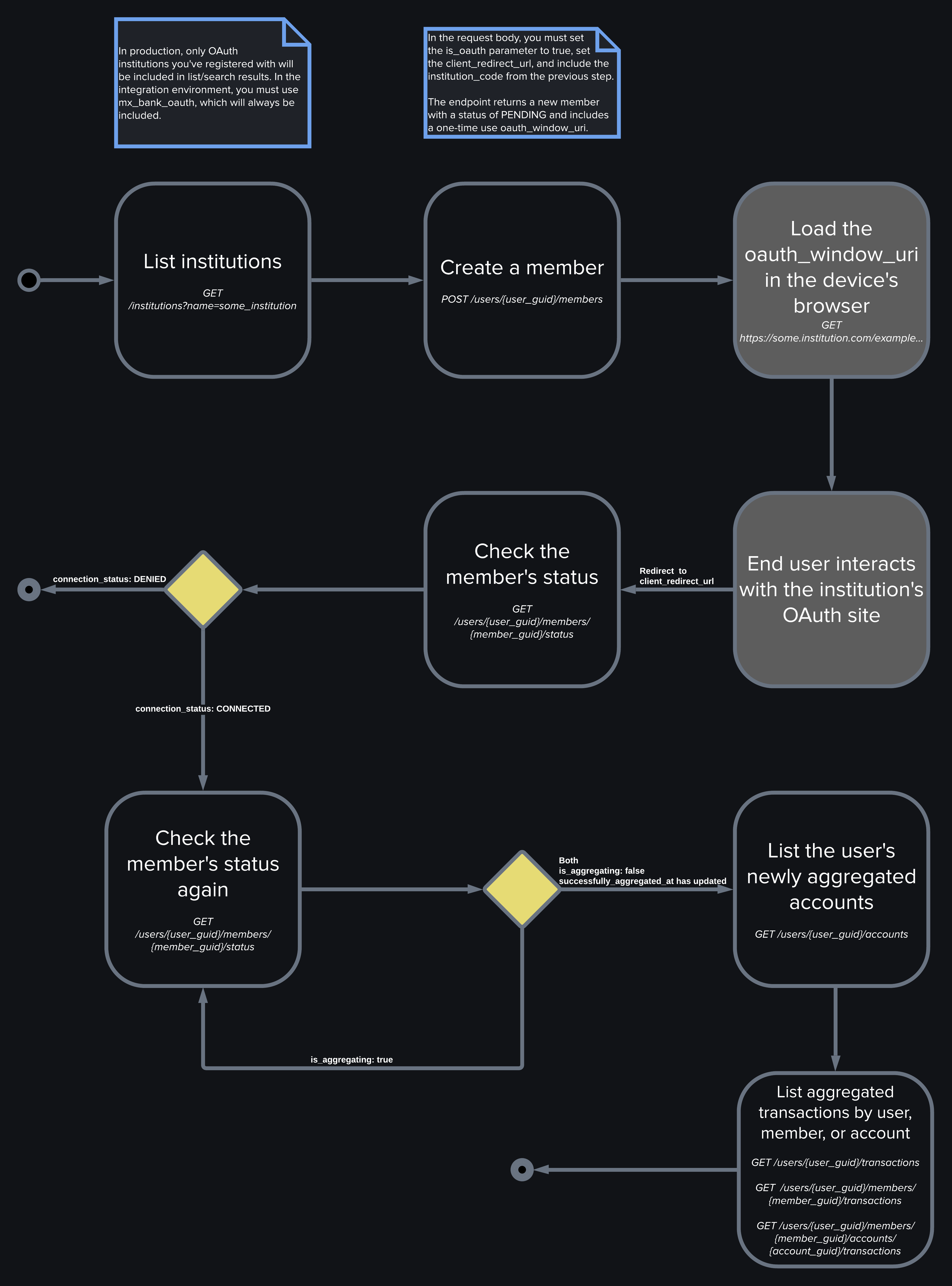 ## 1. Create a Member
Now we'll need to create an OAuth member, which you can do by setting the following:
* `"is_oauth": true`.
* `client_redirect_url` so we can send you UI messages with the right scheme. This can be any string, but we'll use `https://mx.com` in this guide.
* `"referral_source": "APP"` tells MX to use the `client_redirect_url` you provided so you can get back to your app.
Remember that you **cannot include end-user credentials** in your request body when creating an OAuth member. The idea is to never share those with a third party.
Also, we recommend that you always include a unique `id` when creating any resource on the Platform API so you can easily sync between your systems and ours.
`Endpoint: POST /users/{user_guid}/members`
```shell Request theme={null}
curl -i -X POST 'https://int-api.mx.com/users/USR-11141024-90b3-1bce-cac9-c06ced52ab4c/members' \
-u 'client_id:api_key' \
-H 'Accept: application/vnd.mx.api.v2+json' \
-H 'Content-Type: application/json' \
-d '{
"member": {
"id": "unique_id",
"institution_code": "mx_bank_oauth",
"is_oauth": true,
"metadata": "Additional information"
},
"referral_source": "APP",
"client_redirect_url": "https://mx.com"
}'
```
```json Response theme={null}
{
"member": {
"aggregated_at": null,
"connection_status": "PENDING",
"guid": "MBR-84ca0882-ad6c-4f10-817f-c8c0de7424fa",
"id": "unique_id",
"institution_code": "mx_bank_oauth",
"is_being_aggregated": false,
"is_managed_by_user": true,
"is_oauth": true,
"metadata": "Additional information",
"name": "MX Bank (Oauth)",
"oauth_window_uri": "https://mxbank.mx.com/oauth/authorize?client_id=b8OikQ4Ep3NuSUrQ13DdvFuwpNx-qqoAsJDVAQCyLkQ&redirect_uri=https%3A%2F%2Fint-app.moneydesktop.com%2Foauth%2Fredirect_from&response_type=code&scope=openid&state=d745bd4ee6f0f9c184757f574bcc2df2",
"successfully_aggregated_at": null,
"user_guid": "USR-11141024-90b3-1bce-cac9-c06ced52ab4c",
"user_id": "unique_user_id",
}
}
```
## 2. Load the OAuth URI
Now that you've got the `oauth_window_uri` from the last step, load it in the device's default browser.
**WARNING**
Do not open the OAuth window in a Webview. Some finanical instutitions have security restrictions for certain web containers or browsers. See [OAuth WebView Limitations](/resources/oauth-guide/#oauth-webview-limitations) for more information.
`oauth_window_uri`s are **one-time use**. Don't hard code an expected URI into your application.
Don't prepend the `https://` protocol to the URI string, as MX includes this.
This is where the user will interact with the institution's OAuth page and determine what data will be shared with MX and, therefore, with you. Once the end user is done, they will be redirected to the URL you gave for `client_redirect_url`. We'll append to this URL information about success/error as well as the member GUID.
```shell Example client_redirect_url with Appended Information theme={null}
https://mx.com?status=success&member_guid=MBR-df96fd60-7122-4464-b3c2-ff11d8c74f6f
```
## 1. Create a Member
Now we'll need to create an OAuth member, which you can do by setting the following:
* `"is_oauth": true`.
* `client_redirect_url` so we can send you UI messages with the right scheme. This can be any string, but we'll use `https://mx.com` in this guide.
* `"referral_source": "APP"` tells MX to use the `client_redirect_url` you provided so you can get back to your app.
Remember that you **cannot include end-user credentials** in your request body when creating an OAuth member. The idea is to never share those with a third party.
Also, we recommend that you always include a unique `id` when creating any resource on the Platform API so you can easily sync between your systems and ours.
`Endpoint: POST /users/{user_guid}/members`
```shell Request theme={null}
curl -i -X POST 'https://int-api.mx.com/users/USR-11141024-90b3-1bce-cac9-c06ced52ab4c/members' \
-u 'client_id:api_key' \
-H 'Accept: application/vnd.mx.api.v2+json' \
-H 'Content-Type: application/json' \
-d '{
"member": {
"id": "unique_id",
"institution_code": "mx_bank_oauth",
"is_oauth": true,
"metadata": "Additional information"
},
"referral_source": "APP",
"client_redirect_url": "https://mx.com"
}'
```
```json Response theme={null}
{
"member": {
"aggregated_at": null,
"connection_status": "PENDING",
"guid": "MBR-84ca0882-ad6c-4f10-817f-c8c0de7424fa",
"id": "unique_id",
"institution_code": "mx_bank_oauth",
"is_being_aggregated": false,
"is_managed_by_user": true,
"is_oauth": true,
"metadata": "Additional information",
"name": "MX Bank (Oauth)",
"oauth_window_uri": "https://mxbank.mx.com/oauth/authorize?client_id=b8OikQ4Ep3NuSUrQ13DdvFuwpNx-qqoAsJDVAQCyLkQ&redirect_uri=https%3A%2F%2Fint-app.moneydesktop.com%2Foauth%2Fredirect_from&response_type=code&scope=openid&state=d745bd4ee6f0f9c184757f574bcc2df2",
"successfully_aggregated_at": null,
"user_guid": "USR-11141024-90b3-1bce-cac9-c06ced52ab4c",
"user_id": "unique_user_id",
}
}
```
## 2. Load the OAuth URI
Now that you've got the `oauth_window_uri` from the last step, load it in the device's default browser.
**WARNING**
Do not open the OAuth window in a Webview. Some finanical instutitions have security restrictions for certain web containers or browsers. See [OAuth WebView Limitations](/resources/oauth-guide/#oauth-webview-limitations) for more information.
`oauth_window_uri`s are **one-time use**. Don't hard code an expected URI into your application.
Don't prepend the `https://` protocol to the URI string, as MX includes this.
This is where the user will interact with the institution's OAuth page and determine what data will be shared with MX and, therefore, with you. Once the end user is done, they will be redirected to the URL you gave for `client_redirect_url`. We'll append to this URL information about success/error as well as the member GUID.
```shell Example client_redirect_url with Appended Information theme={null}
https://mx.com?status=success&member_guid=MBR-df96fd60-7122-4464-b3c2-ff11d8c74f6f
```