> ## Documentation Index
> Fetch the complete documentation index at: https://docs.mx.com/llms.txt
> Use this file to discover all available pages before exploring further.
# Testing with MX Bank
MX provides a test institution called `mxbank`. Use it to test different scenarios related to connecting end user's accounts while using safe and secure credentials. Connecting to this `institution` generates test data for accounts and transactions.
Depending on the credentials you use which are outlined below, the connection can either complete successfully or prompt a multi-factor authentication challenge. You can test a failed connection to learn more about invalid responses. Each test credential describes the error that you'll experience by the MX system and what connection status is returned as a result. Use the update member endpoint to set the appropriate password for your particular test case.
There are no aggregation limits on the `mxbank` institution, meaning that you can aggregate without worrying about the throttle window applied to other institutions.
`mxbank` is only available in our integration environment.
**INFO**
Unsure if you should use MX Bank? See [When To Use MX Bank vs. MXCU](/resources/test-platform#when-to-use-mx-bank-vs-mxcu) for guidance.
## MX Bank Testing Scenarios
The following table provides a set of username and password combinations that simulate various connection statuses.
If you're integrating with our Connect Widget, input these credentials after searching for and selecting `MX Bank`. For each error-related status, we also describe the message that will appear in the widget.
For API-only integrations, use these credentials when creating a member. We provide details on the error messages returned for each connection status.
| Username | Password (case sensitive) | Connection Status | Description |
| :------- | :----------------------------- | :---------------- | :----------------------------------------------------------------------------------------------------------------------------------------------------------------------------------------------------------------------------------------------------------------------------------------------------------------------------------- |
| `mxuser` | Any value not described below. | `CONNECTED` | Successful aggregation with no MFA. |
| `mxuser` | `challenge` | `CHALLENGED` | Issues an MFA challenge. Answer with `correct` to simulate a correct MFA response, or use one of the passwords below that simulate a server error. Use anything else to simulate an incorrect answer. |
| `mxuser` | `options` | `CHALLENGED` | Issues an MFA challenge of the type `OPTIONS`. Answer with `correct` to simulate a correct MFA response, or use one of the passwords below that simulate a server error. Use anything else to simulate an incorrect answer. |
| `mxuser` | `image` | `CHALLENGED` | Issues an MFA challenge of type `IMAGE`. Issues an MFA challenge. Answer with `correct` to simulate a correct MFA response, or use one of the passwords below that simulate a server error. Use anything else to simulate an incorrect answer. |
| `mxuser` | `BAD_REQUEST` | `FAILED` | External server returns a 400 error with the message, "You must fill out the username and password fields."
If using the Connect Widget, this will display the message: "There was a problem validating your credentials with MX Bank. Please try again later." |
| `mxuser` | `UNAUTHORIZED` | `DENIED` | External server returns a 401 error with the message, "Invalid credentials."
If using the Connect Widget, this will display the message: "The credentials entered do not match those at MX Bank. Please correct them below to continue." |
| `mxuser` | `INVALID` | `DENIED` | External server returns a 401 error with the message, "The login and/or password are invalid."
If using the Connect Widget, this will display the message: "The credentials entered do not match those at MX Bank. Please correct them below to continue." |
| `mxuser` | `LOCKED` | `LOCKED` | External server returns a 401 error with the message, "The credentials are valid, but the user is locked."
If using the Connect Widget, this will display the message: "Your account is locked. Please log in to the appropriate website for MX Bank and follow the steps to resolve the issue." |
| `mxuser` | `DISABLED` | `DENIED` | External server returns a 401 error with the message, "The credentials are valid, but the user is locked." This password may also be used as an MFA answer.
If using the Connect Widget, this will display the message: "The credentials entered do not match those at MX Bank. Please correct them below to continue." |
| `mxuser` | `SERVER_ERROR` | `FAILED` | External server returns a 500 error with the message, "Internal server error." This password may also be used as an MFA answer.
If using the Connect Widget, this will display the message: "There was a problem validating your credentials with MX Bank. Please try again later." |
| `mxuser` | `UNAVAILABLE` | `FAILED` | External server returns a 503 error with the message, "Service is Unavailable." This password may also be used as an MFA answer.
If using the Connect Widget, this will display the message: "There was a problem validating your credentials with MX Bank. Please try again later." |
## Testing OAuth with MX Bank
**INFO**
We recommend you use the [MXCU (OAuth) institution](/resources/test-platform/mxcu/testing-oauth-with-mxcu) to test OAuth flows, since it offers a full OAuth experience.
You can test OAuth flows in the integration environment with MX Bank (OAuth) (institution code: `mx_bank_oauth`).
**NOTE**
In the integration environment, a `user` can only have one OAuth `member` .
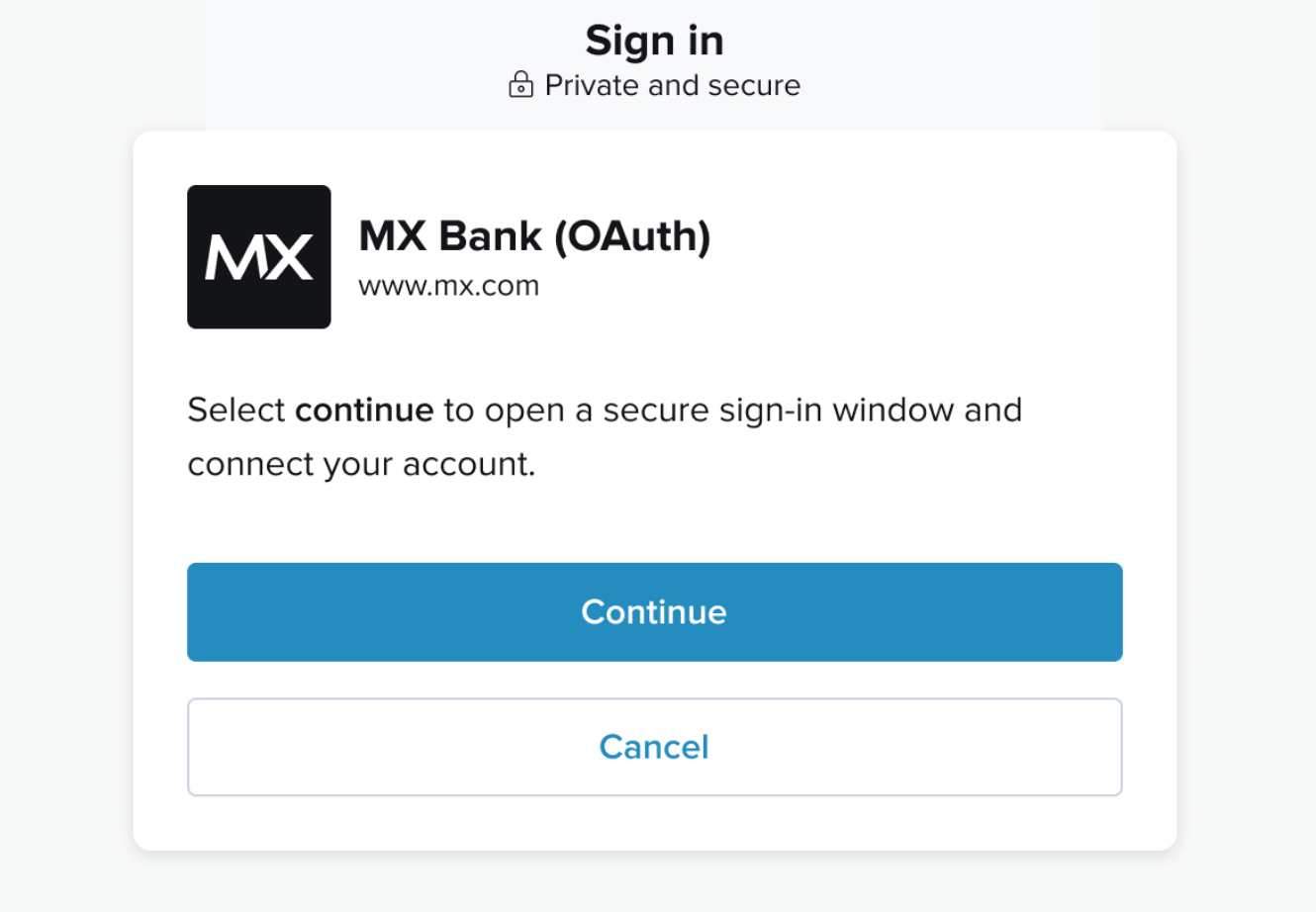
When you select MX Bank (OAuth) from search, or load the Connect with it via `current_institution_code`, you should see the following screen before going to the OAuth provider:
 Then you should end up on this page:
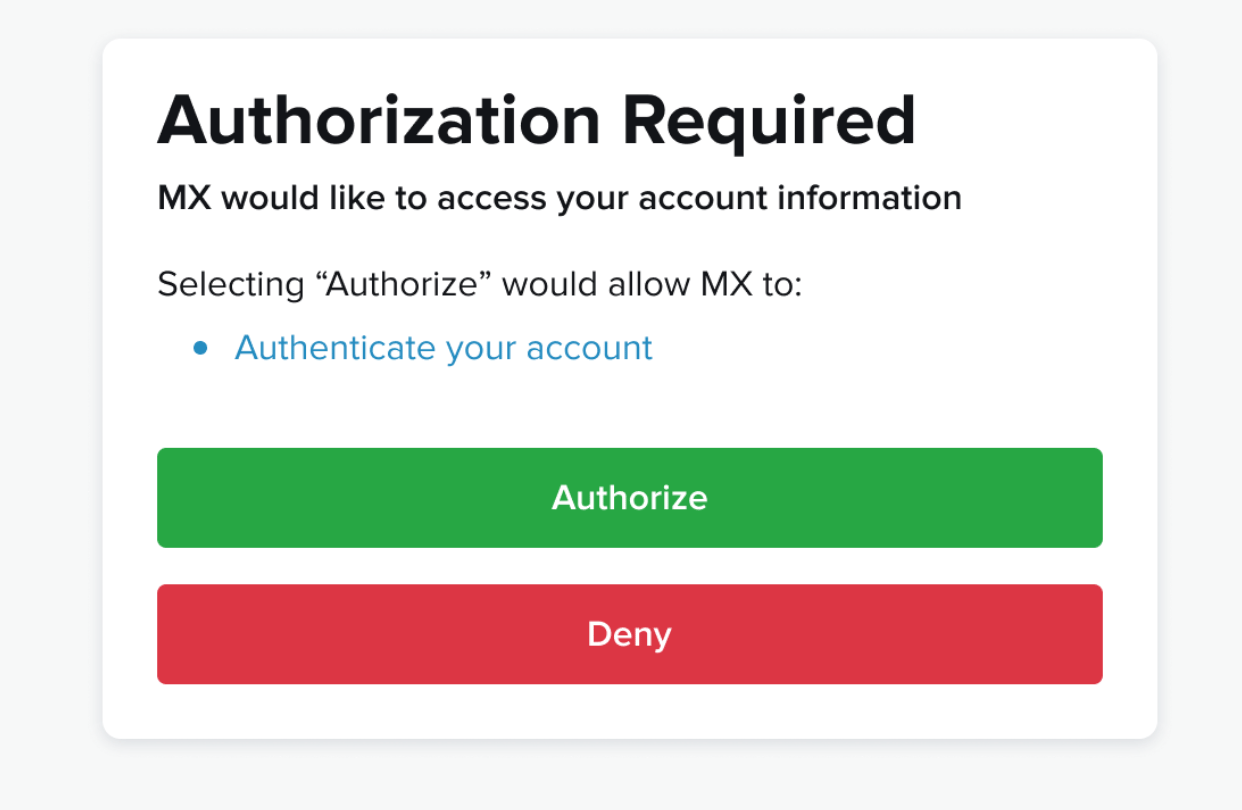 From here you can select **Authorize** to simulate authorization and success paths, and **Deny** to simulate an error path.