

Add an App
To add an app:- From the All apps section, select Add.
- Upload a logo for the app.
- Enter the app’s name.
- Enter the app’s redirect URI. End users will be redirected here after authenticating with the data provider.
- Select which categories the app falls under, or enter a new category.
- Select Save.
Needs review.
View an App’s Details
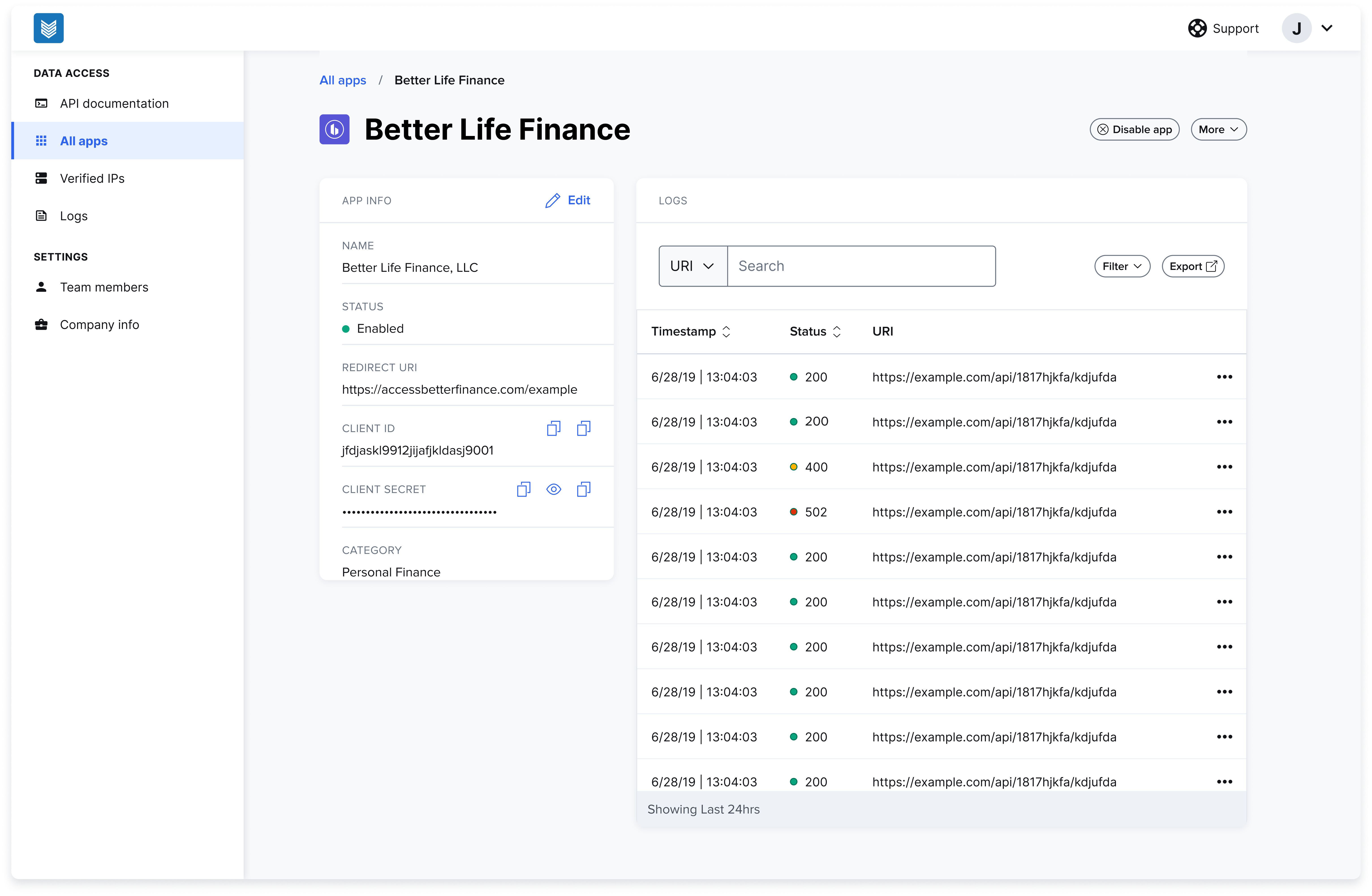
To view an app’s details:- Select the app from All apps table; this will bring up an App info section and a Logs section.
Edit an App’s Details
To edit an app:- Select the app from the All apps table.
- Under App Info, select Edit.
-
Edit one or more of the following:
- Name: The name of the app.
- App icon: The app’s logo.
- Redirect URI: The location the end user will be redirected to after authentication with the provider.
- Category: The app type.
- Select Save.
Export a CSV of Logs for an App
To export a CSV of request logs for a specific app:- Select the app from All apps table.
- Under the Logs section, select Export.
View or Rotate an App’s Registration Key
To view or rotate your app’s registration key:- Select the arrow to the right of your app’s logo; the section will expand and display your masked key.
- From here, you can display your unmasked key or rotate your key to create a new one.
Delete an App
Deleting an app will remove the app completely – it will no longer be able to make API requests to the provider, and you won’t be able to view the app’s information or logs in the portal. To delete an app:- Select the app from the All apps table.
- Select Delete.