

Whitelisting
Before you can work within Atrium’s production environment, your IP addresses must be whitelisted. If you haven’t been whitelisted, you’ll see403 Forbidden errors. You can whitelist IP addresses on your account profile.
Atrium’s vestibule environment does not require any whitelisting.
Resource Structure
Atrium is structured around five major resources, each with its own attributes and endpoints:Creating Users
To create a newuser, call the create user endpoint. It’s a good idea to send along a unique identifier with your request to create a new user. Atrium will also give each new user a unique GUID in the guid field within the user object. The Atrium user GUID also appears in the user_guid field when not inside the user object. The identifier and guid allow you to easily map between your system and Atrium.
You may also include metadata, such as the date the user was created, if desired. You can read more on identifiers and metadata on our API reference page.
An example request for creating a user is shown below.
Endpoint: POST /users
Creating Members
Once auser is created, we recommend creating a member with our MX Connect widget. MX Connect allows end users to easily choose an institution to connect to, enter credentials, update credentials, and answer multi-factor authentication.
If your system or application is unable to support MX Connect, you can always call the endpoint directly in your code. To create a member via endpoints, you’ll follow the workflow below:
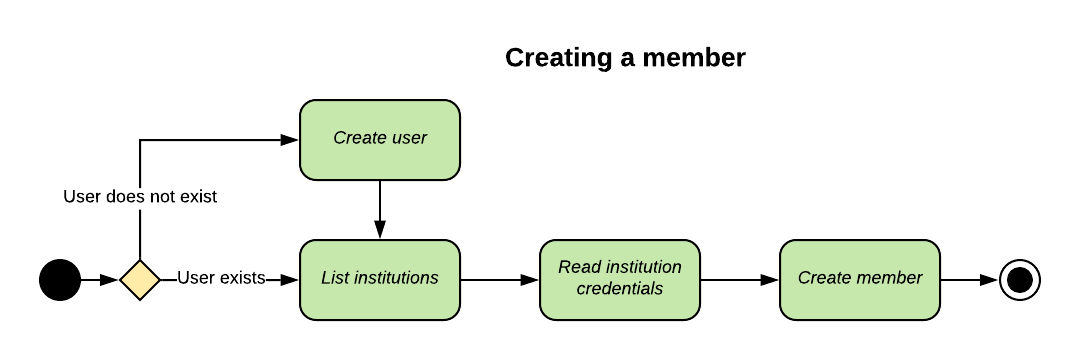
member has been created, you’ll want to call the read member status endpoint to determine whether answering MFA is required or to update credentials as needed.
The steps outlined below assume you’re creating a new member on an existing user.
1. Search for an institution
Endpoint:GET /institutions
2. Get institution required credentials
EndpointGET /institutions/{institution_code}
3. Create a member
Endpoint:POST /users/{user_guid}/members
4. Poll the member status
Endpoint:GET /users/{user_guid}/members/{member_guid}/status
Aggregating Data and Dealing with MFA
Aggregating data about accounts and transactions belonging to amember is a multi-step process. This same general outline applies to all aggregation-type features, with the necessary endpoint substitutions, of course: account verification, identity verification, extended transaction histories, fetching statements, account balance aggregation, and standard aggregation.
In general, it involves:
- Making a request to the aggregate member endpoint (or an analogous endpoint);
-
Polling the
memberfor changes in the state of the aggregation using the _read member connection status endpoint and looking at fields such asconnection_status,is_being_aggregated,is_authenticated,has_processed_accounts, etc.;- Using the Connect Widget provided by MX greatly simplifies and automates steps 2 and 3;
- If necessary, answering MFA challenges using the resume aggregation endpoint.
- Reading aggregated data using the list accounts and _list transactions endpoints (or analogous endpoints).
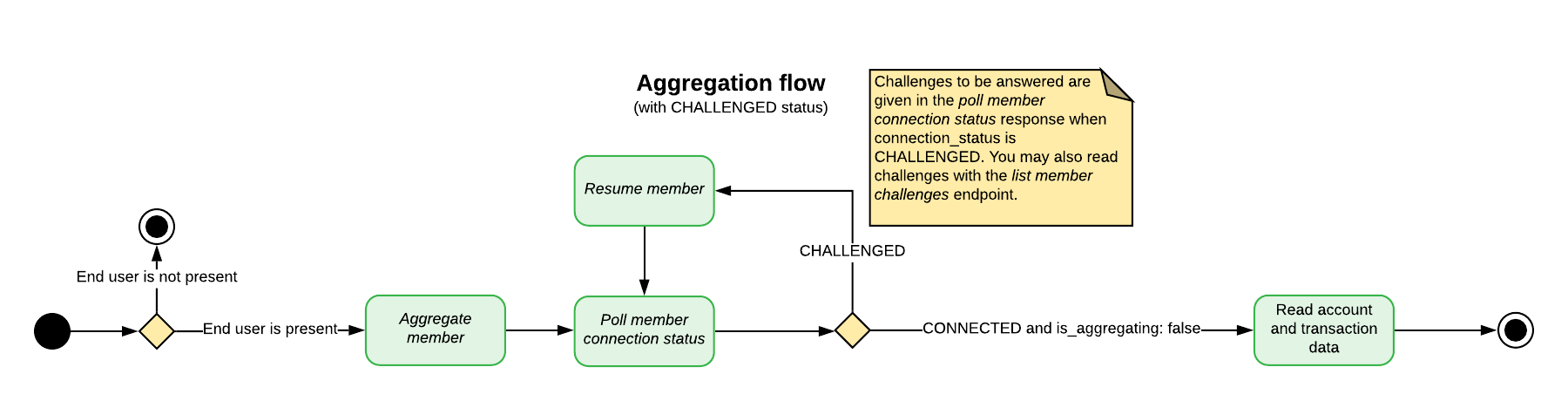
member every 24 hours. This process is called background aggregation. It ensures that end users’ data will always be up to date. If an end user is present, you may also manually run a foreground aggregation using the general steps specified above. End users must be present during foreground aggregations because they may run into MFA, credential update requests, terms and conditions agreements, or any number of other situations requiring end-user input.
Both foreground and background aggregation may be manually prevented by disabling a user. A user must be re-enabled before any aggregation can be attempted.
Atrium may also suspend background aggregation on a particular member in some circumstances, such as when several consecutive aggregation attempts fail. However, you may always attempt a foreground aggregation on a suspended member.
Running Multiple Aggregation-Type Events on a Member
Your particular application may use several of Atrium’s aggregation-type processes, including standard aggregation and premium features like fetching statements, verifying identity, etc. All of these processes are run on a specificmember, but they cannot be run simultaneously — each process must reach an end state before a new process can be started.
Furthermore, when running multiple processes in succession, standard aggregation should always be performed first in the series. This is because any aggregation-type process will prevent a new standard aggregation for the next three hours; however, running a standard aggregation has no effect on the timing of premium features.
If a member already has a process running and you attempt to run an aggregation-type process on it, you may get one of two status codes:
- If an event of the same type is already running, you’ll get a
202 Acceptedstatus;
- For example, you called verify member when a verification is already running;
- You can tell that a process is already running because the
is_being_aggregatedfield will betrue.
- If an event of a different type is running, you’ll get a
409 Conflictstatus;
- For example, you called identify member when a standard aggregation is already running.
MFA And Connection Statuses
Some institutions require multiple steps for authentication; this process is called multi-factor authentication (MFA). Basically, it is a back and forth dialogue between the end user, the partner’s application, and theinstitution. After the initial credentials are provided, the institution can either grant access or present an MFA challenge.
INFOMFA is controlled by the institution’s security settings and not by MX. MFA can be encountered at each step in the aggregation process.
connection_status will be CHALLENGED. You must get the correct answer to the challenge from the end user and send it to MX so aggregation can continue. More than one MFA cycle may occur. Financial institutions will typically have multiple MFA questions and may ask a new question in future aggregations. Partners must continue to answer the institution’s challenges until the institution grants access to the end user’s account.
A single aggregation may also enter multiple CHALLENGED states. A typical scenario for this is when a list of options is presented along with a question such as, “Where should we send an authentication token?”
MFA can occur at any time on any aggregation, so even if authentication has been successful in the past, the institution may require an end user to authenticate again. Furthermore, aggregation may trigger MFA even if end users can successfully log into their online banking portal without MFA using the same credentials.
Member Connection Statuses
Theconnection_status field appears on all member resources and indicates the current state of aggregation for that particular member. Partners can poll a particular member using the read member connection status endpoint to follow changes in the connection_status throughout an aggregation.
The connection_status should be used in conjunction with several other member fields to determine future actions, including aggregated_at, is_being_aggregated, and successfully_aggregated_at, has_processed_accounts and has_processed_transactions. Definitions for these fields appear at the end of this section. Definitions for all member fields are available here.
For example, when the connection_status is CONNECTED and the is_being_aggregated field is false, this means the latest aggregation attempt has finished and data for accounts and transactions should be pulled. Partners can use the field successfully_aggregated_at to determine when the last successful aggregation occurred.
When the status is CHALLENGED, an MFA challenge has been issued, requiring a separate workflow and user input.
The statuses CREATED, UPDATED, DELAYED, and RESUMED represent transient states for different points in the aggregation process and generally do not require a specific action or end-user input. They may, however, require continued polling until an end state is reached.
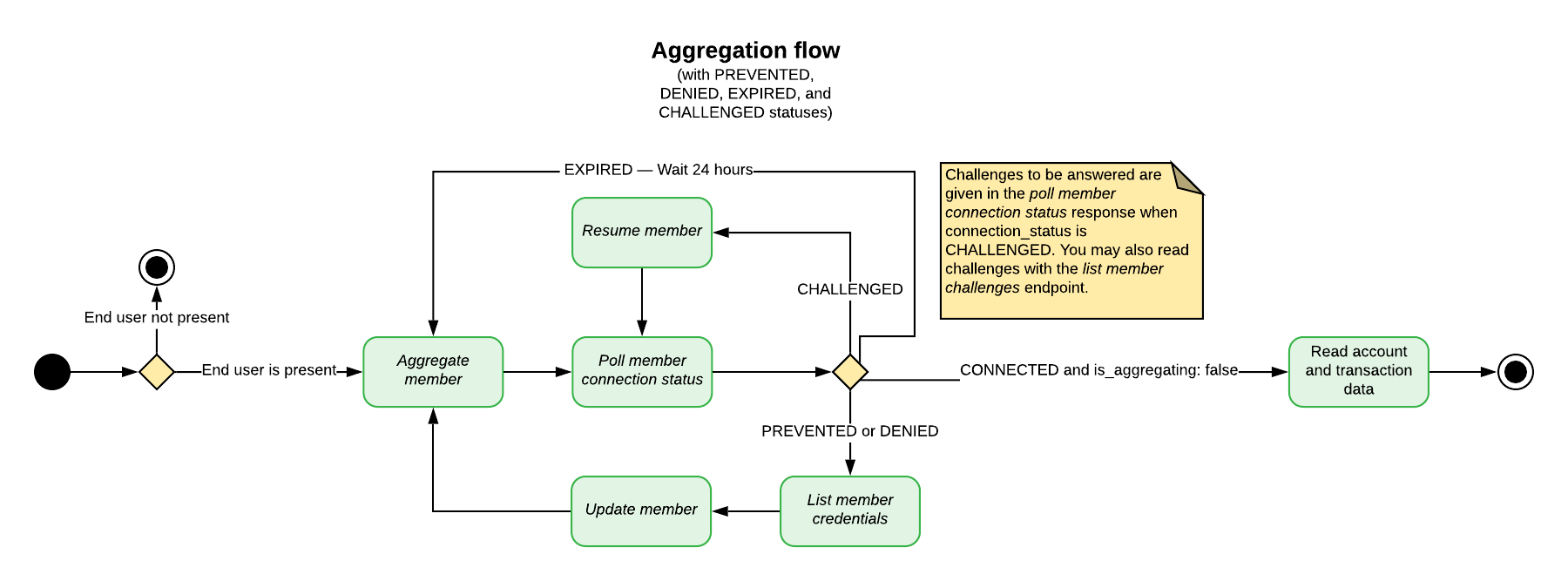
The statuses PREVENTED, DENIED, IMPEDED, IMPAIRED, REJECTED, EXPIRED, LOCKED, IMPORTED, DISABLED, DISCONTINUED, and CLOSED, represent end states that will require a new aggregation, and possibly end-user input for future success.
Member fields to poll during aggregation
Dealing with a CHALLENGED Status
When a member comes back with a status of CHALLENGED, the aggregation will require answers to MFA from the end user. The challenges that must be answered are returned in the read member connection status response, nested inside the challenges array, as shown to the right. Simply polling this endpoint for changes in the connection_status should return challenges as quickly as possible.
Once MFA answers have been gathered for the challenged member, a request to the resume aggregation endpoint will send these answers and automatically resume the aggregation process. Aggregation will run until it either completes in an end state or enters into a state that requires action.
It is not uncommon for an aggregation to be CHALLENGED more than once.
Example response for read member connection status when the connection_status is CHALLENGED
JSON
Dealing with Multiple CHALLENGED States in One Aggregation
A single aggregation may enter multiple CHALLENGED states. A typical scenario for this is when a list of options is presented along with a question such as, “Where should we send an authentication token?” As above, polling the read member connection status endpoint after resuming an aggregation should return these further challenges.
Here is a typical example: MFA is triggered and asks where to send an access token. The end user should be prompted for the answer and that answer provided to MX through the resume aggregation endpoint. The connection_status will move to a RESUMED state, but then will go back into a CHALLENGED state. This time, the end user should be prompted to enter the access token. If the second MFA challenge is answered successfully, the aggregation will typically proceed to an end state such as CONNECTED.
Dealing with a DENIED or PREVENTED Status
If a member has a PREVENTED or a DENIED status, it means the authentication credentials are invalid; the end user must provide new credentials, and the member must be updated. A request to the list member credentials endpoint (as distinct from the separate list institution credentials endpoint) will return a list of the authentication credentials required for that member; corresponding input should be gathered from the end user, and that input should be passed to the update member endpoint.
Step-by-Step Guide for Standard Aggregation with MFA
The steps below show the ideal path for a standard aggregation on an existing member, including MFA. It’s the happy path, so to speak. There are other flows and situations, to be sure, but this gives you the basic outline of a common situation that requires resolution.1. Check the member’s connection status
The first step is to check the member’sconnection_status to determine whether aggregation is either necessary or possible. Each status indicates something different; some connection statuses mean that an aggregation will fail if attempted or that an aggregation is already in progress. See the sections above for more information, or consult the documentation on connection statuses for full details on exactly what each status means.
The following lists represent general guidelines.
INFOThe
connection_status field is not the same as status. The status field should no longer be relied on for aggregation purposes.member with the following connection statuses:
CREATEDCONNECTEDDEGRADEDDISCONNECTEDEXPIREDFAILEDIMPEDEDRECONNECTEDUPDATED
member with the following connection statuses:
PREVENTEDDENIEDIMPAIREDIMPORTED
CHALLENGEDDELAYEDREJECTEDRESUMED
member with the following connection statuses:
CLOSEDDISABLEDDISCONTINUED
GET /users/{user_guid}/members/{member_guid}/status
2. Aggregate the member
Making a POST request to the aggregate member endpoint initiates an aggregation. Endpoint:POST /users/{user_guid}/members/{member_guid}/aggregate
3. Check the connection status again
In this example, we see that the status has returned asCHALLENGED, meaning the aggregation has run into MFA. When CHALLENGED, the response to your status request will include a challenges object containing the MFA that the end user must answer.
Endpoint: GET /users/{user_guid}/members/{member_guid}/status
4. Answer MFA with the resume aggregation endpoint
Endpoint:PUT /users/{user_guid}/members/{member_guid}/resume
5. Check the connection status again
Check theconnection_status again, and keep checking until the aggregation reaches an end state (for example, when the is_being_aggregated field is false).
Endpoint: GET /users/{user_guid}/members/{member_guid}/status
Steps for Multiple-Question MFA
Multiple-question MFA is very similar to single-question MFA explained above.- Aggregate the member (or create a new
member) - Check the member connection status.
- Answer the
challengeusing the resume aggregation endpoint - Check the connection status again.
- Answer the next
challenge. - Keep checking the connection status and answering challenges until an end state is reached.
Pulling Data
When an aggregation is initiated, themember field aggregated_at will update. If it completes successfully, the successfully_aggregated_at field will be updated. These will help you determine when to pull the latest data after a foreground aggregation.
Transaction data can be accessed though three different endpoints: /users/{user_guid}/transactions, /users/{user_guid}/members/{member_guid}/transactions, and /users/{user_guid}/accounts/{account_guid}/transactions. The first will list all the transactions that belong to the user object. The second will return all transactions that belong to a member object. The third will return all transactions that belong to an ‘account’ object.
We recommend first listing available accounts, then listing transactions for a specific account.