

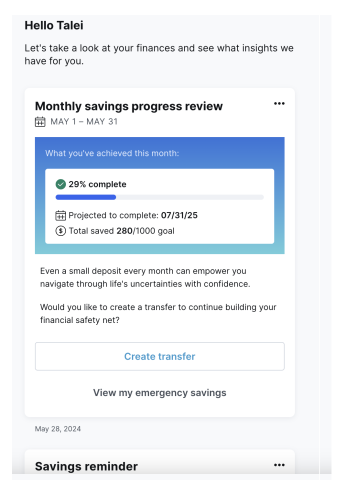
To integrate the widget, you’ll send an API request and receive a widget URL that can be embedded wherever you want. See Integrating Insights Widgets for more info.
Calls to Action (CTAs)
Some insights have a CTA button that takes the user to an activity like transferring to savings or setting up a budget. Some CTAs users may see in their insights include:- Create a budget
- View all subscriptions
- View budget
- View transaction
Configurations & Customizations
You can change the language used in the widget when sending the API request for the widget. You must contact MX to:-
Change which insights are enabled for you.
- When an insight is disabled, existing insights of that type in the Insights Widget won’t go away. They will still be in the user’s feed until the user hides them, or six months passes.
- For a list of all insights, see the Insights Library.
- You can request MX enable different insights to display in your Insights Widget, Mini Insights Widget, and Micro Insights Widget.
- Customize the widget’s brand color. If you want to change this, provide MX with a hex code for your brand’s primary color. Changing this will affect the brand color used other PFM and insights widgets too.
-
For each insight in the Insights Widget, you can request MX to change the following copy (see the Insights Library for all default copy):
- Title
- Description, including an optional selectable link
- Call-to-action button (not every insight uses this)
- Supporting action (not every insight uses this)
- Customize the thresholds used to trigger some insights.
-
Set your widget to display in dark mode. We can set the widgets to either:
- Display in light or dark mode for all users, or
- Follow each end user’s system preferences
Hiding an Insight
Users can hide a specific insight once or hide it permanently so that type of insight will never show in their feed again. To hide an insight, users must:- Select the options menu icon within the insight.
- Select Hide this insight.
- Choose Once or Always.
- Leave feedback (optional).
Insight Details
Two things can display beneath an insight in the Insights Widget:- The date: This shows when the insight was generated, not necessarily when it was first displayed. For some insights, this could also represent the date of a primary transaction or the date of a bank-observed holiday.
- If the insight contains the transaction data of one account, it will display the account’s name beneath the insight. If the insight contains transaction data from multiple accounts, then the number of related accounts will display beneath the insight.
Supported Dimensions
The Insights Widget supports a minimum height of 550px and a minimum width of 320px.User Feedback
Users can provide feedback on insights through the Insight Widget’s UI by:- Selecting the options menu icon on an insight.
- Selecting This is helpful or This is not helpful.
Widget Load Failure Message
When the widget fails to load, a message with the following title and body copy displays:- Title: Oops! Something went wrong.
- Body: We’ve notified support and we’re looking into the issue. Please try again later.