

If you’re a developer looking for implementation details, refer to Widget Events.
Types of CTAs
An insight in the Insights Widget can include up to three kinds of actions. Not every insight uses all three.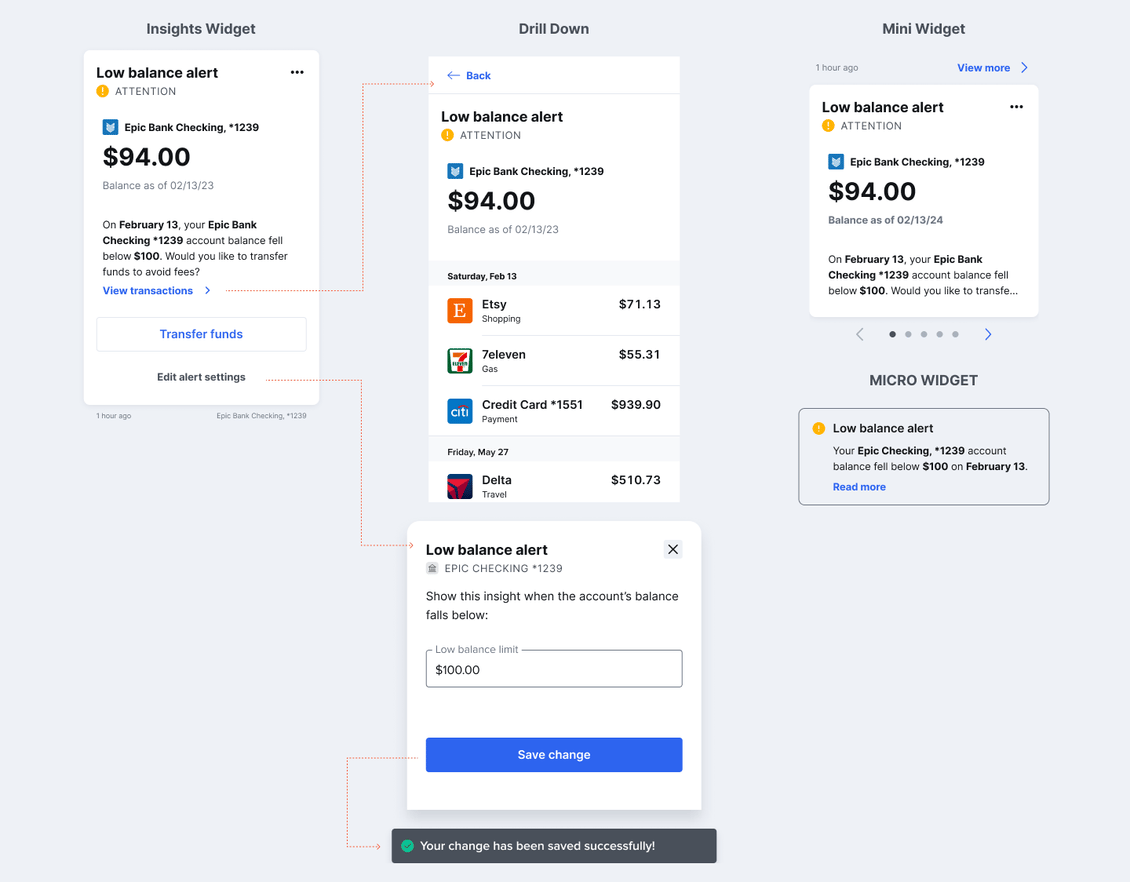
Where CTAs Send Users
Some images in the Insights Library label where each CTA goes. For example, the Emergency Fund Withdrawal image shows that Create transfer redirects the user to create a transfer, while View transactions opens inside the widget. Each CTA does one of two things:- Opens something inside the widget. For example, View transactions opens a list of the related transactions. MX handles these CTAs for you.
- Sends the user outside the widget. For example, Transfer funds takes the user to your transfer flow. MX can’t handle these, so your developers connect the CTA to the right place in your app or website.
CTAs You Must Handle
These insights have CTAs that send users outside the widget. Before you enable them, confirm your digital banking experience meets each requirement. Some insights show a different CTA depending on the user’s situation. Support every CTA for an insight you enable. Here’s what each requirement means:- Funds transfer flow: A place where users move money between their accounts.
- Savings account opening: A way for users to open a savings account.
- Direct deposit integration: A way for users to have their paycheck deposited into an account they hold with you.
- Emergency savings view: A page with the Goals Widget, or another place where users can view their emergency savings.
- Spending Plan Widget: A page with the Spending Plan Widget.
CTAs in Your Own UI
If you build your own insights UI with the Platform API instead of our widgets, you decide what every CTA does, including the ones MX normally handles inside the widget. See Actionable Insights for guidance.CTAs on Custom Insights
When you create a custom insight, you define its CTAs. Give your MX representative:- The text of the CTA buttons, which appear at the bottom of the insight.
- The text of the CTA link, which appears as part of the description.
- The name of the event triggered when the user selects the CTA.