

- Overview
- Mini Widget
- Empty State
The Goals Widget helps end users plan and visualize their financial goals.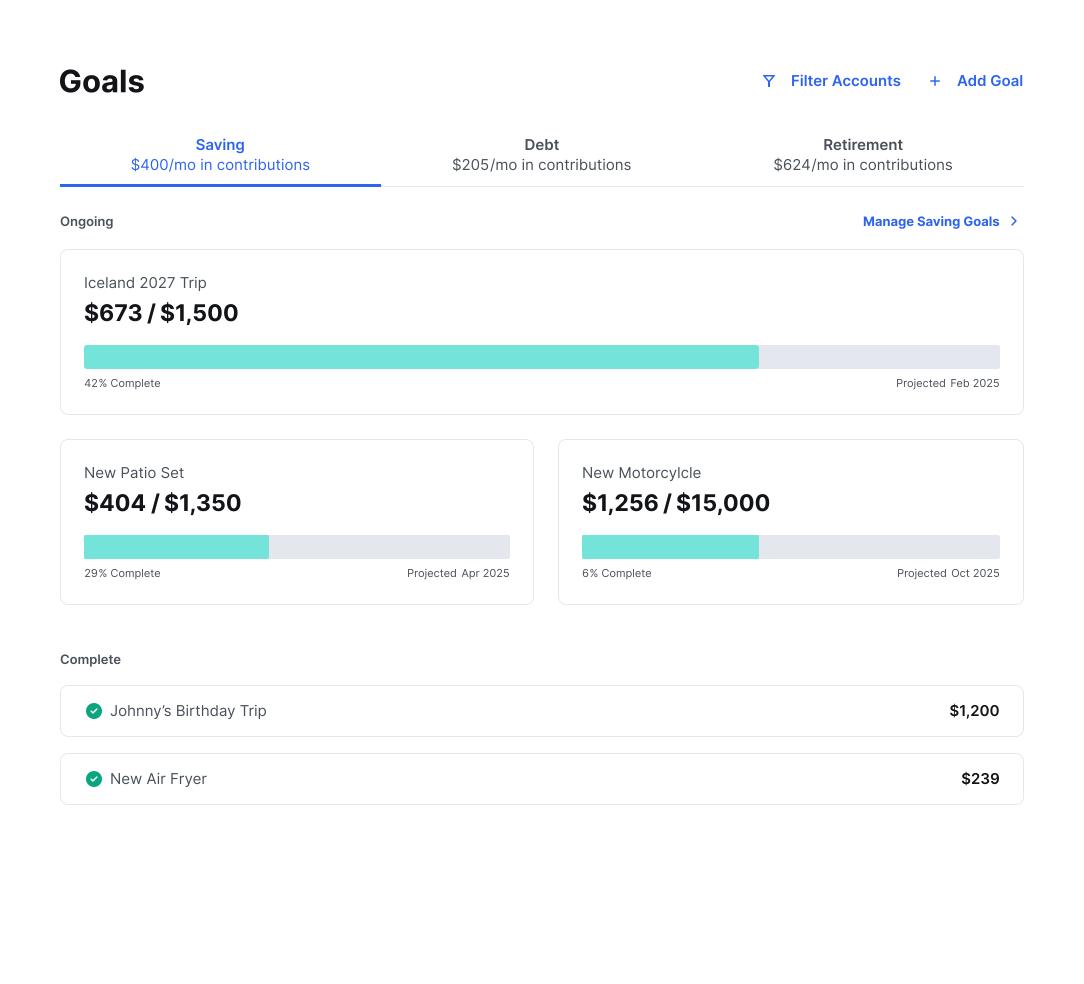


- The account that’s linked to the goal
- % paid off
- Progress bar of completion
- Projected payoff date
- Amount paid vs amount owed
Key Features
- Add a new goal (savings, debt payoff, retirement)
- See goals, progress, and projected completion date
- Hide a debt payoff goal
- Delete a savings or retirement goal
- Edit the details of a goal
- Filter the accounts shown
Goal Types
There are 3 types of goals: Savings, Debt, and Retirement. Goals will be grouped along the top by goal type. Each goal type has a color assigned to make them easily identifiable.- Savings – Green
- Debt Payoff – Blue
- Retirement – Purple
DEBT GOALSIf a user has already connected a debt account, the widget will automatically pull in the information it needs to create a debt goal, including balance, APR, and minimum payments. The widget will use the minimum payment information to automatically calculate the date the debt will be repaid, however, users can add more to pay the debt off sooner.
Create a Debt Payoff Goal
- In Goals, select Add a Goal.
- Choose the Debt Payoff goal type. This will bring up a window that lists all your debt accounts.
- Check all the accounts you wish to track.
- Select Save.
Create a Retirement Goal
- In Goals, select Add a Goal.
- Choose the Retirement goal type.
- Select your date of birth. If you’ve already entered personal information in Settings, your birthday will automatically be imported.
- Choose the age at which you’d like to retire. The default is 65.
- Enter the amount of money you’d like to have when you retire.
- Select Current Savings. This will open a window from which you can choose your retirement accounts.
- Check one or more retirement accounts. The total balance of selected accounts will be listed as your current savings.
- Select Add it Here at the top of the panel if you need to connect another account to the software.
- Select Save.
- Select Save on the next window as well.
Create a Savings Goal
- In Goals, select Add a Goal.
- Select the Savings goal type.
- Select a more specific type of savings goal. You can choose from: emergency fund, automobile, college, home, recreational, vacation, electronic, or other.
- Edit the details for the goal: give it a name and set an amount you would like to save for your goal.
- Select the Select an Account field. A window will appear listing all your non-checking, non-debt accounts.
- Select the account you’d like to use for this goal.
- Select Save.
Change Your Debt Goal Priority
- In Goals, select the dropdown menu on the right side of the panel. The default setting is Fastest Payoff First.
- Choose your preferred priority method.
Change Your Goal Contribution
- In Goals, under Manage Goals, open the monthly contribution window. Select Savings, Debt Payoff, or Retirement.
- Select Edit Contribution.
- Enter your new contribution amount.
- Select Save.
Change Your Savings Priority
- Select Reorder.
- Drag the goals to your preferred order.