

- Overview
- Mini Widget
- Empty State
The Accounts Widget shows account balances, recent transactions, and connection status for all linked accounts in one place. You can link accounts from most financial institutions.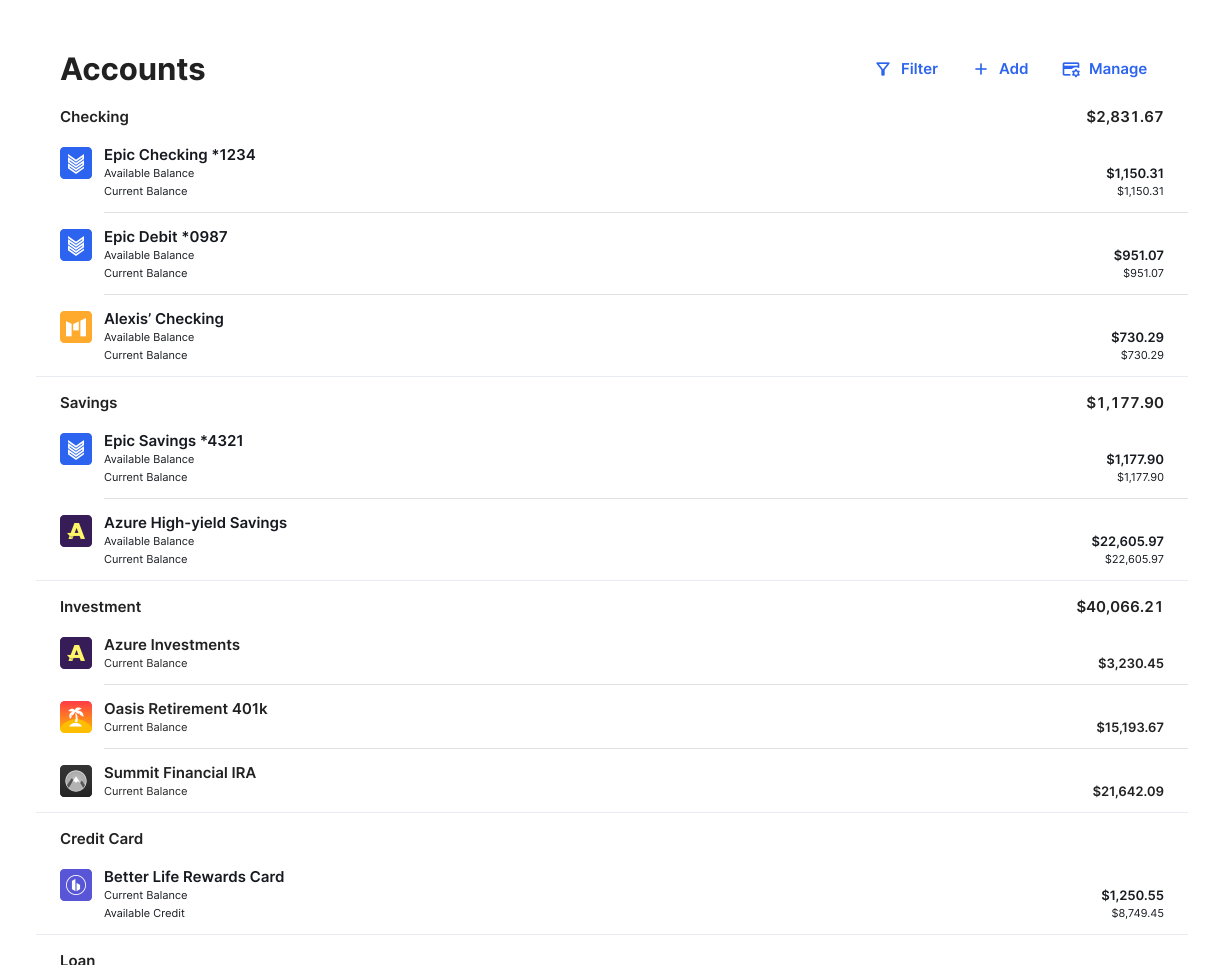


Key Features
- Add accounts
- Filter the accounts that show in the widget to focus on specific account types or institutions
- View account details such as balances and transactions
- Hide the account so it’s no longer used in any widget. Note: hidden accounts can still have an active balance and receive transactions
- Mark the account as a business, duplicate, or closed account. Note: closed accounts will no longer update balance or transaction information
Add an Account
- In Accounts, select + Add an Account.
- Search for a financial institution by its name or URL, or select one from the list of popular institutions.
- Enter the requested login credentials.
Some institutions use multifactor authentication as part of the login process.
Add a Manual Account
Sometimes it’s not possible to automatically bring in important financial information. It might be that one of your financial institutions doesn’t support our software, or it might be that you paid off your home a decade ago, so there wouldn’t be an online account with any information about it. In these situations, you need to add a manual account. This will allow you to keep track of things with a lot of value: property like a home or car, cash that isn’t in a bank, a credit card that isn’t compatible with the tools, a loan you’re paying back to a friend. These are all critical to your finances, so add as many as you can.INFOIf you have a mortgage or loan that was used to buy property like a home or a car, you should add a manual account for the full value of that home, car, and so on. That way, the app will keep track of the positive value of your assets and not just your debt.
- Select + Add an Account.
- Select + Add Manual Account.
- Choose an account type.
- Enter the details.
- Select Save.
Delete a Manual Account
You may wish to delete a manual account from time to time, like when you sell a computer, car, or even your home. To delete a manual account:- In Accounts, select the account you wish to delete.
- Select the menu button, then select Delete Account.
- Type “DELETE.”
- Select Delete, or exit out of the delete box if you change your mind.
Hide an Account
If you don’t want an account to be used in any of the available features or reports, you can choose to hide the account. This way, no information or transactions from that account will be factored into other tools. The data related to that account won’t be deleted, however, and you can easily unhide an account. To hide an account:- In Accounts, select the account you want to hide.
- Select the menu icon, then Hide Account from the dropdown.
- A warning message will appear asking if you really want to hide the account.
- Select Hide to confirm, or exit out of the box if you change your mind.
Unhide an Account
- In Accounts, select the account you want to unhide.
- Select the menu icon, then Unhide Account from the dropdown. Your account data will appear and be included in other features.
Merge Duplicate Accounts
Duplicate accounts can appear when existing account connections are altered, such as when a financial institution changes the way they name accounts in their system, or when a lost or stolen credit card is replaced. When the account is relayed to the tools under a different name or identity than in the past, it’s created as a new account. This type of duplication can be fixed by merging the accounts to ensure all data is retained. To merge duplicate accounts:- Determine which account is the original. It will have a longer transaction history than the new account.
- Select the original account.
- Select the menu icon, then select Mark as Duplicate from the dropdown.
- Select the duplicate account from the list of accounts that appears. A message will appear warning you that merging two accounts into one can’t be undone.
- Select Merge.
- Type the word “MERGE” and select Confirm to complete the process.
Resolve a Connection Error
If there’s a connection error on an account, you’ll see an error icon over the account. To resolve a connection error:- Select the account with an error. A window will appear explaining the connection issue.
- Follow the troubleshooting steps indicated for your connection.
- If you’re unable to reconnect the account, submit a support request.