

- Overview
- Empty State
The Transactions Widget shows a chronological list of a user’s transactions from all accounts over the past 30 days. Transactions are automatically cleansed and categorized.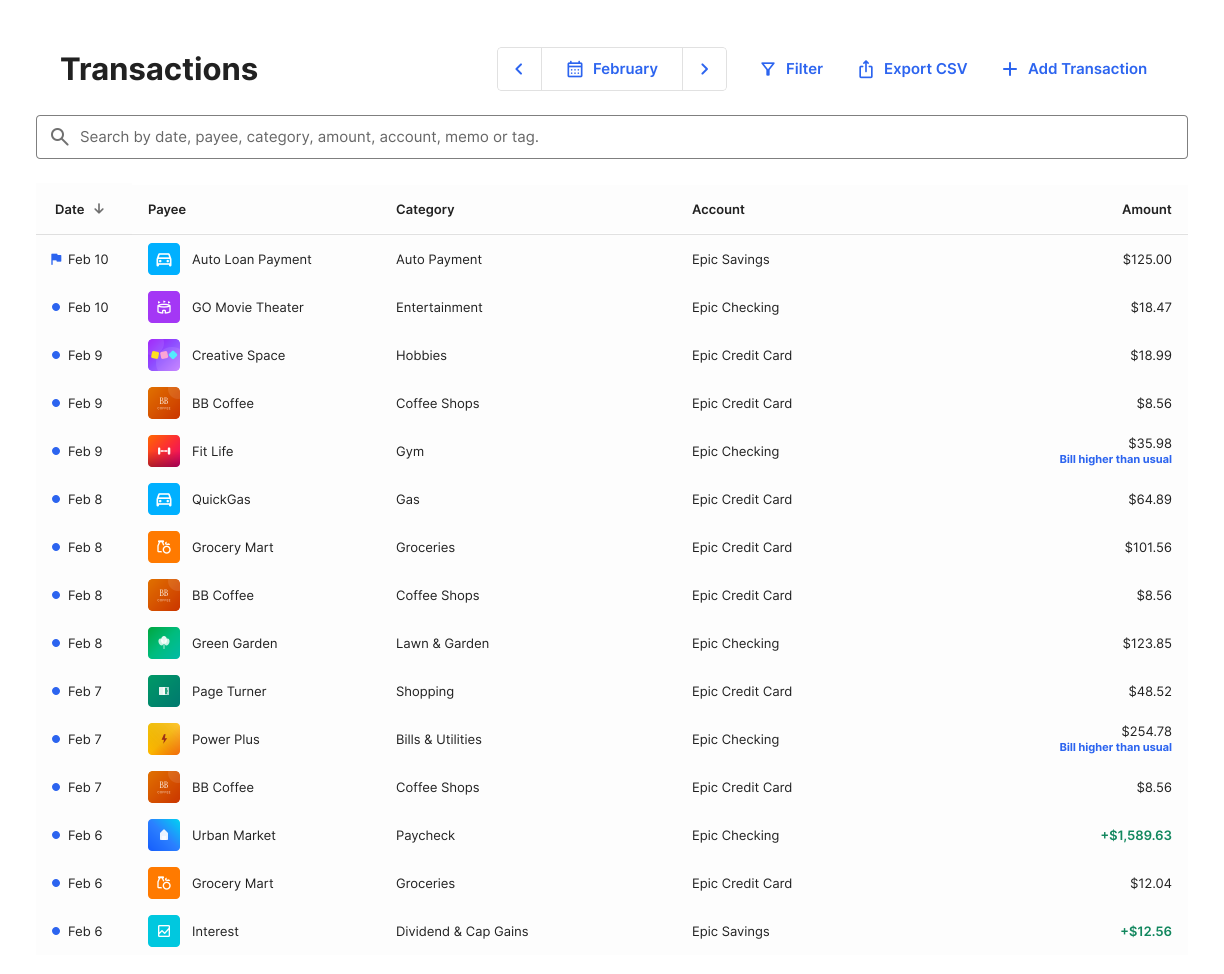

Key Features
- See transactions and details such as the date, payee, category, account, and amount. By default this shows all transactions in the last month, but users can also customize the range.
- Sort transactions by details like amount or category
- See Insights generated for a transaction
- Filter the accounts shown
- Add a manual transaction
- Search for transactions
- Export transactions to a CSV
- Within each transaction edit the payee, date, and category, add or remove tags, add a memo, and delete the merchant logo
-
Within each transaction:
- Exclude a transaction from use in other widgets
- Flag a transaction
- Split a transaction
Manual Transactions
Manual transactions can only be added to manual accounts. End users can’t add a manual transaction to an account connected to an outside financial institution.Add a Manual Transaction
- In Transactions, select + Add.
- Create a manual account if you haven’t already.
- Enter all details of your transaction, including the amount, payee, date, category, account, type, and any relevant tags or memos.
- Select Save.
Pending Transactions
If an incoming transaction is marked as pending, it will be shown at the top of the transactions list in italics. Pending transactions are editable, but changes won’t be saved when the transaction moves from pending to posted.Delete a Pending or Manual Transaction
Only pending and manual transactions can be deleted. A transaction may appear twice: once as pending and once as posted. You can delete the pending transaction if it doesn’t automatically reconcile with the posted transaction.- Select the transaction.
- Select the menu button.
- Select Delete.
- Select Delete to confirm.
Split Transactions
Some transactions encompass multiple categories in a single purchase. This is particularly common at big box stores like Costco or Walmart where an end user might buy groceries, home supplies, and a kayak all in one transaction. End users can split a transaction between as many categories as needed to accurately account for their spending.Split a Transaction
- Select the transaction you want to split
- Select the three dots in the top right.
- Select Split.
- Enter the amount, category, tags, and flags for each line of the split.
- Select Save Split to confirm your changes.
Delete a Split
- Select any line of the split transaction.
- Select the trashcan icon to reunite all splits into a single transaction.
- Select Delete to confirm.
Categorize Transactions
Sometimes, transactions can be left uncategorized. When end users go to their transactions, they’ll be prompted to assign a category to these transactions.- In Transactions, go to the transaction you want to edit and select its category.
- Select the correct transaction category from the list.
- Decide if you want the new category to apply to just this transaction, or to all similar transactions.
Transaction Rules
Since recategorizing dozens of transactions can be time consuming, end users can create transaction rules to make this much easier. These rules automatically place all similar transactions, both past and future, into the category of the end user’s choice.Edit a Transaction Rule
- On Transactions, select the settings icon.
- In Settings, select Transaction Rules. You’ll see a list of the rules you have created, named according to the payee.
- Select a transaction rule. Edit the payee or choose a new category.
- Select Save.
Delete a Transaction Rule
- On Transactions, select the settings icon.
- In Settings, select Transaction Rules. You’ll see a list of the rules you have created, named according to the payee.
- Select a transaction rule.
- Select the delete icon.
- Select Delete to confirm.
Exclude a Transaction
Transactions can be excluded if you don’t want to include them in your financial reports. The transaction will still be visible in the Transactions Widget, but it will be marked as Excluded and the amount will not be factored into any calculations. It can be re-included later if you change your mind.- Select the transaction you want to exclude.
- Select the menu button.
- Select Exclude.
- Select Exclude to confirm.