

- Overview
- Mini Widget
- Empty State
The Budgets Widget lets users create and manage their budgets.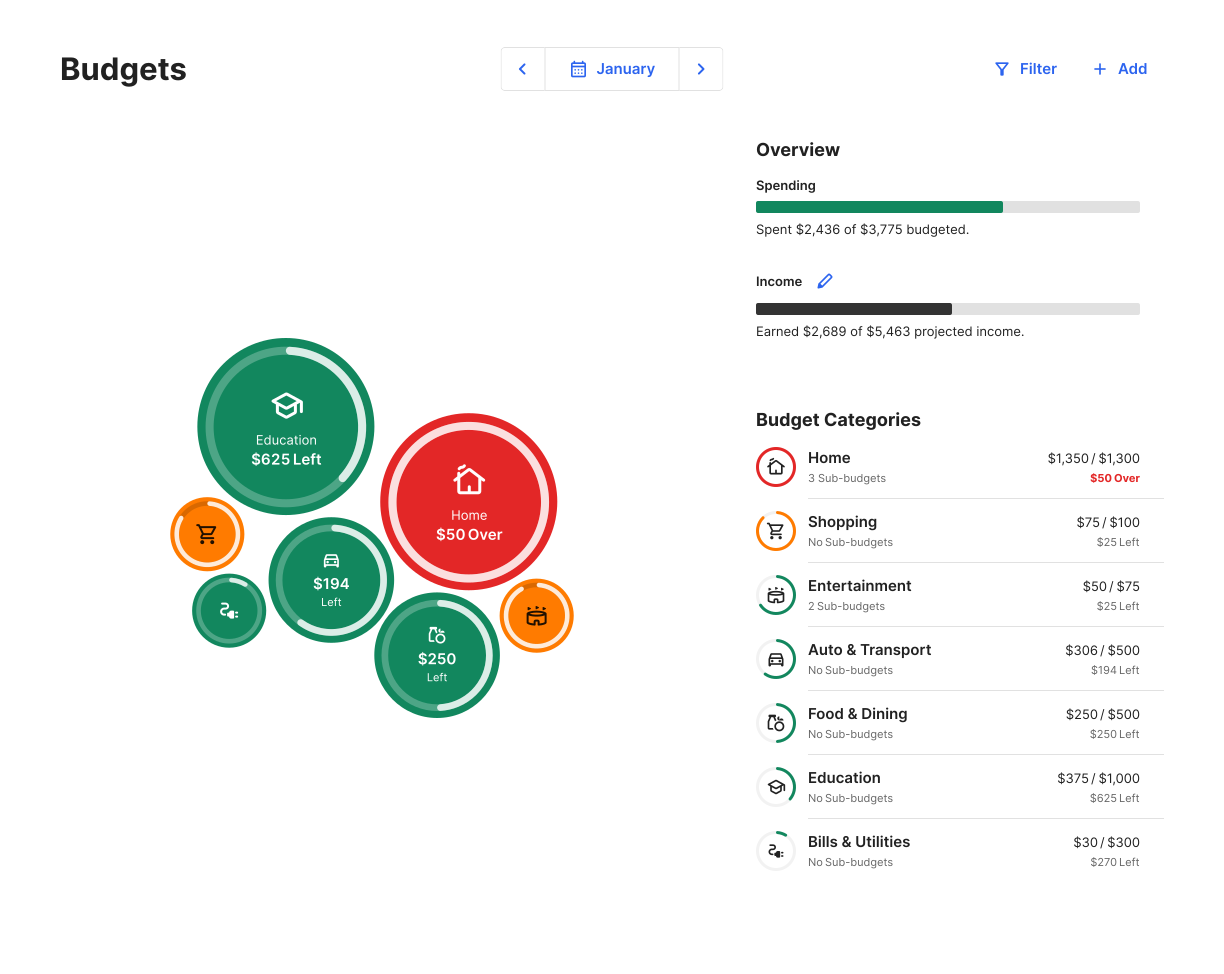


- Select Auto-generate Budgets. This requires there to be transactions in the same category for the previous two months.
- Select Start From Scratch.
- Green = under 80%
- Yellow = from 80–100%
- Red = over 100%
Key Features
- Auto-generate a budget based on average spending in each category over the last two months. This feature requires complete transaction data and works best when all accounts are connected and transactions are accurately categorized.
- Manually create a budget
- View budgets as bubbles that change color and size depending on the amount of money and if the budget has been exceeded or not
- Filter the accounts shown
- View bubble budgets of current or previous months
-
Select a bubble budget and:
- View the transactions associated with the budget
- Edit the budget’s amount
- Add a new sub-budget
- Delete a budget
- Modify monthly projected income
-
Recalculate budgets
- Recalculation is based on the user’s last two months of available data. If the recalculation is unsatisfactory, they can revert the changes
Editing a Budget
If a user increases a sub-budget to an amount greater than the main budget, the main budget amount will automatically increase. However, deleting or reducing a sub-budget won’t affect the main budget.List View
Your implementation determines where the list view appears: on the right side next to the bubble budgets, under the bubble budgets, or hidden under the bubble budgets. If the list view is hidden, a list view button will appear on the lower right.Recalculate Your Budgets
If your budgets seem a bit off or you want to take advantage of automatically created budgets, you can use the recalculate feature. Recalculation is based on the last two months for which complete data is available. To recalculate your budgets:- In Budgets, select Add New Budget.
- Select Recalculate Budgets. You’ll see a preview of each newly created budget next to the previous budget amount.
- Select Save if you want to keep these budgets, or Undo if you change your mind.
Edit Projected Income
- In Budgets, select the pencil icon under the green Projected Income bar.
- Enter a new amount.
- Select Save.