

https://access.your-domain.com/embed/authorizations.
Access is authenticated with either:
- An access token
- (Deprecated) Nested JSON Web Tokens (JWTs), which are signed and encrypted
Access Token
PREREQUISITETo get your credentials in the Data Provider Portal, go to Configuration > Consent Dashboard Management and select Generate API credentials.
-
Request a one-time access token from the Request Token endpoint. Include
client_idandclient_secretin the request header. The request body must include theconsent_managementscope and thecustomerId(must matchopenid_connect_user_id).- Every token is single-use and expires in five minutes
- Request a new token after use or expiration
-
Set your iframe’s
srcto theaccess_tokenyou retrieved in the last step.
(Deprecated) JWTs
The following steps provide details on embedding the dashboard using JWTs.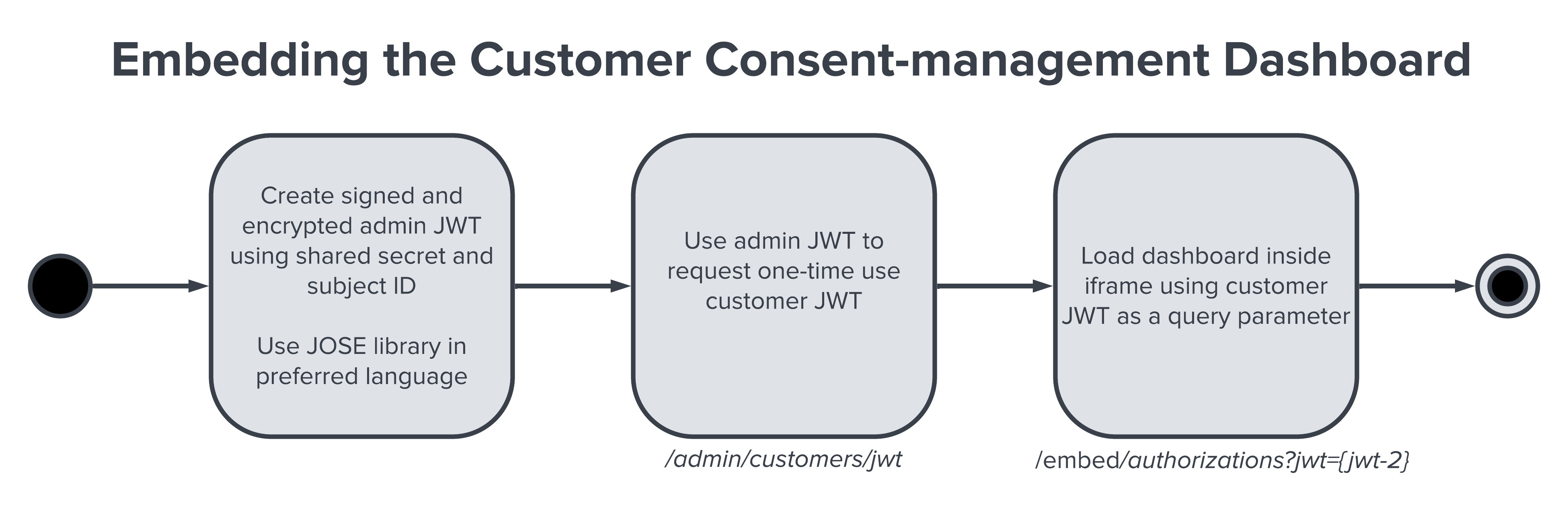
- Generate an encrypted admin JWT on your own systems using your shared secret and the customer’s unique identifier.
- Use the admin JWT (step one) to request an encrypted, expiring, one-time use customer JWT from Data Access.
- Use the customer JWT (step two) as a query parameter to load the dashboard into an iframe.
Every customer JWT generated by Data Access is single-use and expires after 15 minutes.
Create an Admin JWT
First, create an admin JWT using JSON Web Encryption (JWE). Use an appropriate encryption library to generate an admin JWT with your shared secret and the unique identifier for the customer. An example shared secret might beJx2qSDdJy6BJfkjH7PPZ6OPnjbjd/qNI2vgbCRT30Qw=. MX strongly recommends using a Javascript Object Signing and Encryption (JOSE) library to handle JWE creation. There are many libraries and implementations available for different languages. Javascript and Ruby examples are shown here. Data Access uses AES256-GCM.
The encrypted object must contain the sub claim, for example {"sub": "sub-id-1234"}. This is the same as the subject identifier outlined in the OIDC spec. It’s the unique identifier for that user in your system.
Keep your shared secret safe. When an admin request body is correctly decrypted in Data Access, it is considered to be from a trusted source.
Create a Customer JWT
Next, use this endpoint to create a JWT for the specified customer based on their unique subject identifier included in the previous section. If a customer with the givensub hasn’t yet been created in Data Access, using this endpoint will create it.
Endpoint: POST /admin/customers/jwt
Embed the Dashboard
To embed the customer consent-management widget in an iframe, pass thejwt query parameter into the route with the customer JWT as the value. This will authorize the view for the specified customer without reauthentication.
Endpoint: GET /embed/authorizations?jwt=${customer_jwt}
The widget is 512px wide and has a minimum height of 600px. If the iframe is wider, the widget centers; if taller, it can grow to the iframe height. The widget uses scrollbars if the content is longer than the height.