How To Release a Build on the App Store
To release a build on the App Store, you'll need to:
- Upload the build.
- Submit the build for review on App Store Connect.
- Release the build after it's approved.
Upload the Build
This guide will show you how to upload a build using Transporter:
- Download Transporter from the Apple Store. You can also use Xcode/altool, but Transporter is easiest.
- Open the Transporter app and log in. If you have access to multiple developer accounts, select the developer account that has the app you want to upload a release for.
- Select +.
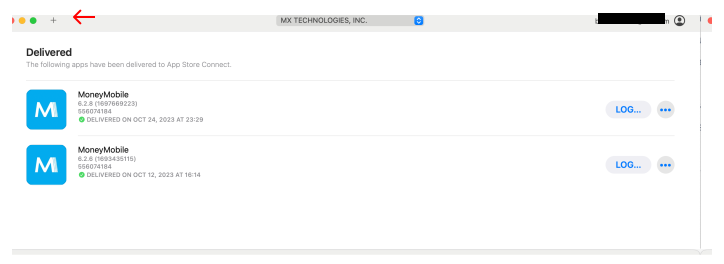
- Select the .ipa file you want to upload and select Open.
- Select DELIVER.
- If you receive a prompt to install Xcode, select Continue Without Xcode.
Once the build is delivered, you'll see within Transporter that the app is processing.

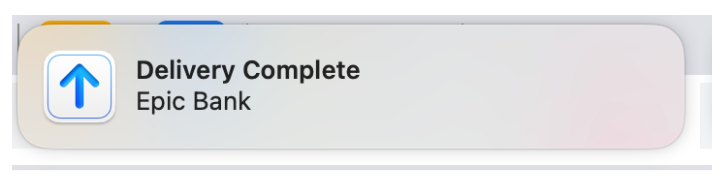
You'll also see a desktop confirmation.
Submit the Build
Once a build has been uploaded through Transporter, you can submit that build for App Store review:
- Log in to App Store Connect with the same account you used in Transporter.
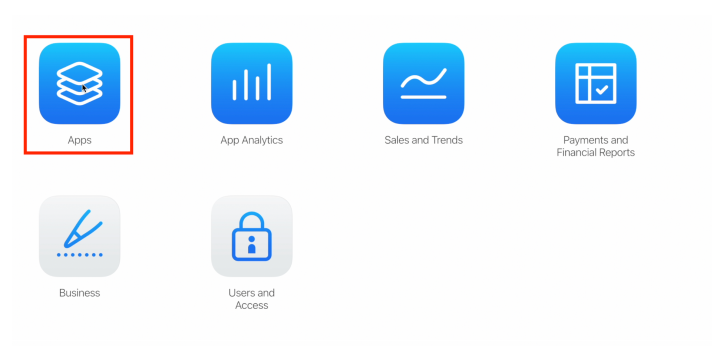
- Select Apps.
- If you have access to multiple clients, select the relevant one.
- Select + to begin staging a new release.
note
If needed, you can select Save at any time and return later.
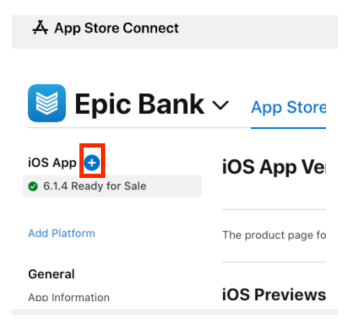
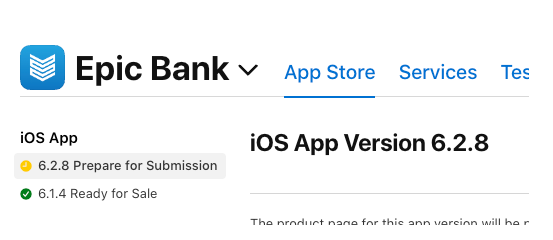
- Enter the branch number provided by MX. If you see [your_version_number] Prepare for Submission, as shown in the following image, you've entered the correct branch number.
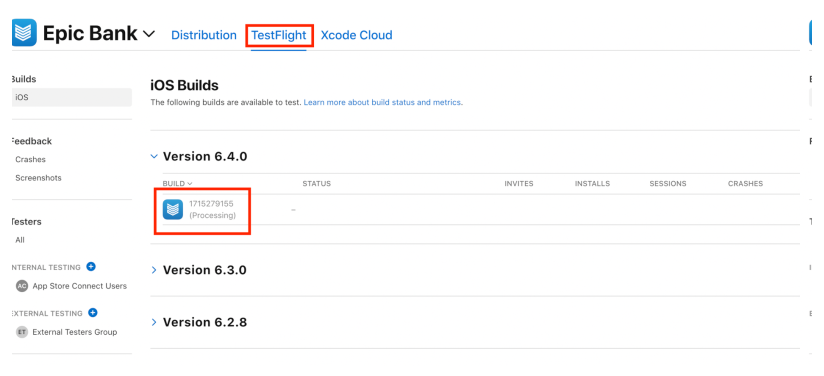
- Select the TestFlight tab to see the status of your build upload from Transporter.
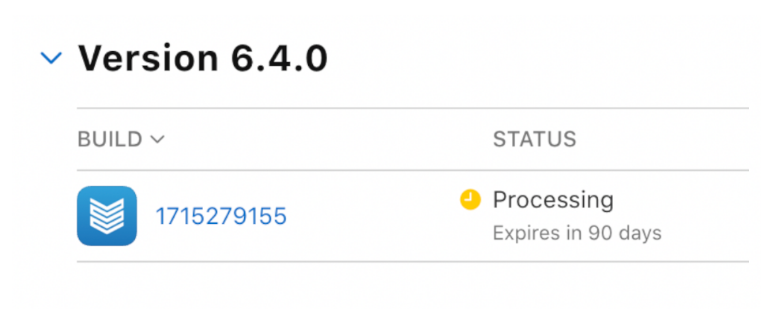
- Once the upload is complete, its status will change to Processing.
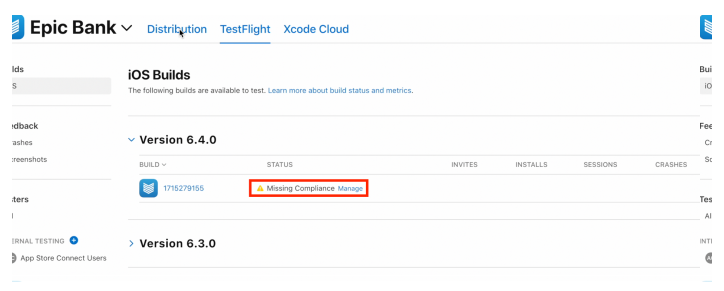
- If you see Missing Compliance in the status, select Manage.
- If you see the Export Compliance Information screen, select the following option: "Standard encryption algorithms instead of, or in addition to, using or accessing the encryption within Apple's operating system."
- The next and final question is regarding availability in France. Select No, then select Done.
- Return to the Distribution tab.
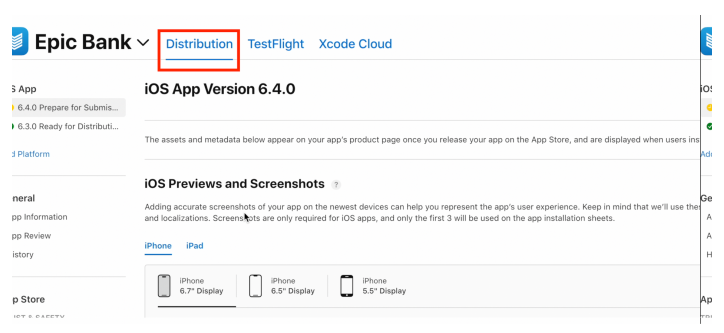
- Within the Distribution tab, review the following fields. We'll cover each field and share any recommendations.
Field Notes iOS Previews and Screenshots Existing app listings can carry over screenshots from previous releases. New app listings will require MX to coordinate internally with our design team to generate screenshots. Promotional Text This is optional, but typically left blank. Description This is typically created for the initial listing and never needs an update. What’s New in This Version The default for this field is usually "Minor enhancements and bug fixes." Keywords This is optional and for store search optimization. By default, this persists across releases. Support URL This is optional. By default, this persists across releases. Marketing URL This is optional. By default, this persists across releases. Version This is filled in automatically after entering the branch number. Copyright This is optional. By default, this persists across releases. Routing App Coverage File This is optional, but typically left blank. App Clip You can skip this. iMessage App You can skip this. Apple Watch You can skip this. - When you get to the Build section, select + (or you can select Add Build) to add the build that was uploaded via Transporter. Select the radio button left of the build's icon, then select Done. After selecting Done, leave the Game Center checkbox unchecked.
- In the App Review Information section, ensure Sign-in required is checked and that the username and password are both valid. You can include more details in Notes. Ensure the details in Contact Information are up to date.
- In the Version Release and Phased Release for Automatic Updates sections, select the options that match your needs. Manually release this version and Release update to all users immediately are good defaults.
- In the Reset iOS Summary Rating section, you can typically use Keep existing rating.
- Once all of this is reviewed, select Add for Review, then select Submit to App Review.
An alert will appear saying your submission has been submitted for review.
Confirmation that the app has passed the App Store's vetting will be delivered to the email associated with your App Manager privileges. You can also return to the page to check for updates.
Release the Build on the App Store
You’ll know the build is store approved and ready to be released when you've received a confirmation email or have confirmed the build is ready to release in App Store Connect.
If you receive an email from Apple Support about invalid purpose string values, you can disregard it.
After you've confirmed the build is release-ready, you can release it by following these steps on App Store Connect:
- If you need to edit the time the build releases, select Edit next to Version Release to schedule the build to release immediately or at a later time.
- Select Release This Version. A confirmation window will appear including a list of countries where the app will be available for download. If you need to change the list of countries, you can edit this in Pricing and Availability.
- Again, select Release This Version. You’ll have three confirmations that the build is available:
- You’ll see Ready for Sale in the upper right next to your version number.
- You’ll get an email from the App Store confirming availability.
- You’ll be able to download the updated version from the App Store, typically within 1 to 30 minutes.