How To Release a Build on the Play Store
To release a build on the Play Store, you'll need to:
- Upload the build using Google Play Console.
- Submit the build for review.
- Release the build after it's approved.
Step 1
Upload the Build to the Play Store
- Log in to Google Play Console. If you have access to multiple accounts, select the account that has the app you want to upload a release for.
- Select the app you want to update.
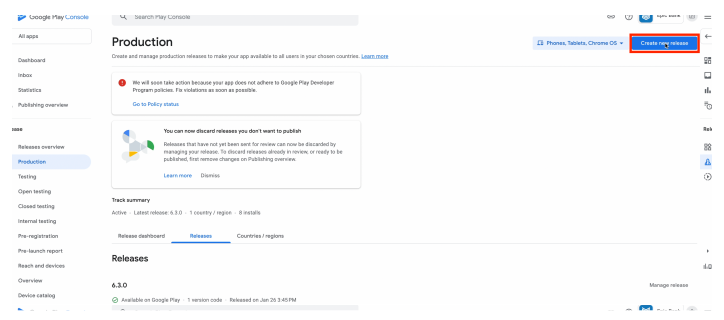
- On the left menu, select Production.
- Select Create new release.
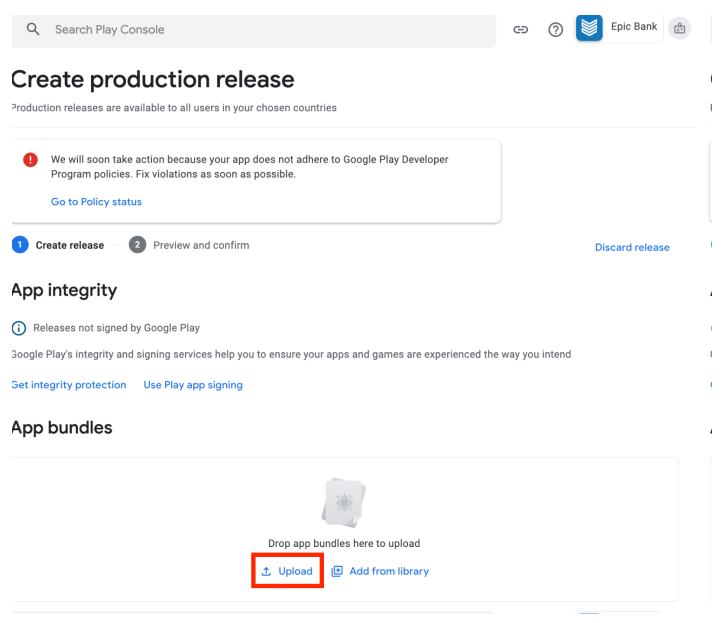
- In the Create product release > App bundles section, select Upload and upload your .apk file. The App bundles section should now show the details of the .apk file you uploaded.
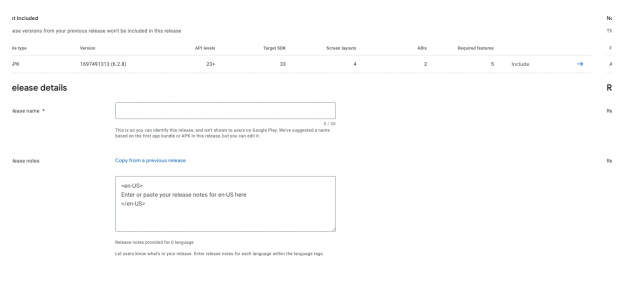
- If Release name hasn't been populated in the Release details section, enter your release name as the branch number of the release.
- Enter release notes that describe the changes within this new release. A typical default is "Minor enhancements and bug fixes."
- Select Save as draft.
- Select Next to enter the Preview and confirm step. Address any errors, warnings, or messages.
- Complete the Staged roll-out section. Roll-out percentage should be 100% unless there's some need to reduce risk and release to only a percentage of live users.
- Select Save.
- In the Go to Publishing overview? prompt, select Go to overview unless you're waiting on information or some other dependency.
Step 2
Submit the Build to the Play Store
- In Publishing overview, you will see your release listed under Changes ready to send for review. If there are other changes ready to send for review – for example, if you’ve had to update Policy status or App content – those changes must be submitted together.
- Unless you want publish this build immediately without further review, turn on Managed publishing if it's not already on. If managed publishing is off, your build will be automatically published as soon as the store review is completed and approved.
- If you've reviewed the release notes and build, select Send 1 change for review.
You’ll know your build submission was successful if your release now appears under Changes in review.
You'll have the option to Remove changes on the right until the store review is complete.
Step 3
Release the Build on the Play Store
You’ll know the build is store approved and ready to be released when you've received a confirmation email or have confirmed the build is ready to release in Google Play Console.
After you've confirmed the build is release-ready, you can release it by following these steps in Google Play Console:
- Select Publishing Overview to see the option to publish your change.
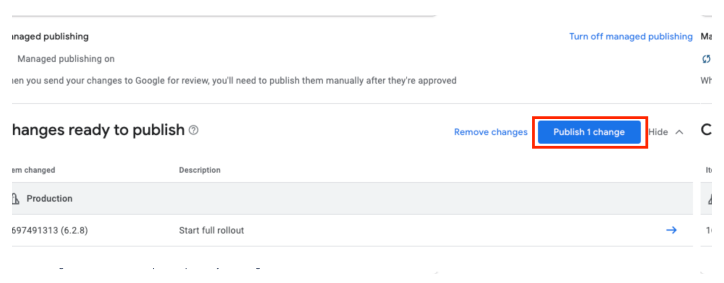
- In the confirmation modal, select Publish changes.
You can confirm your build has been published in these ways:
- The Publishing Overview screen will be blank.
- You’ll be able to download the updated version from the Play Store, typically within 1 to 30 minutes.
- You’ll receive a confirmation email.
- Your release in the Releases overview will be listed as Release status: Available on Google Play.